
Pose Control allows you to generate 3D characters in standard rigging poses (A-pose or T-pose) or fully customized poses, making your models ready for rigging and animation workflows.
⚠️ Availability: This feature is available exclusively to paid users on the Pro plan and above. Free users will not have access to Pose Control.
Overview
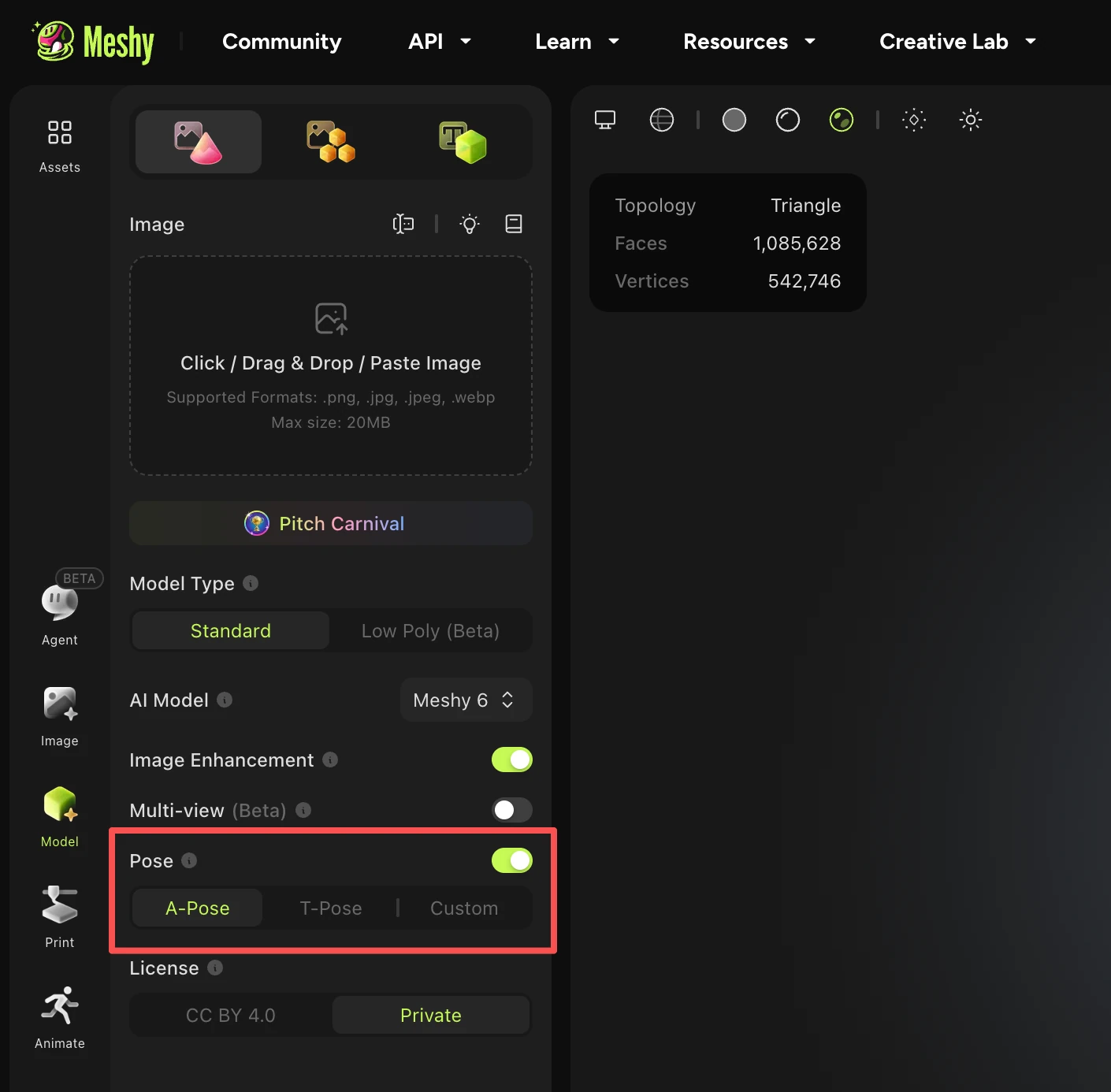
You can find pose control in the Image to 3D workspace.
How It Works
Pose Control offers two modes: Preset Poses (A/T-Pose) and Custom Pose.
Option 1: A-Pose / T-Pose (Preset)
-
Open the Image to 3D workspace.
-
In the model generation window, enable either the A-Pose or T-Pose toggle.
-
Click Generate.
✅ Cost: 0 credits
✅ Output: A character in the selected A or T pose, ready for rigging.
Option 2: Custom Pose
For full control over your character's posture, use the Custom Pose feature.
-
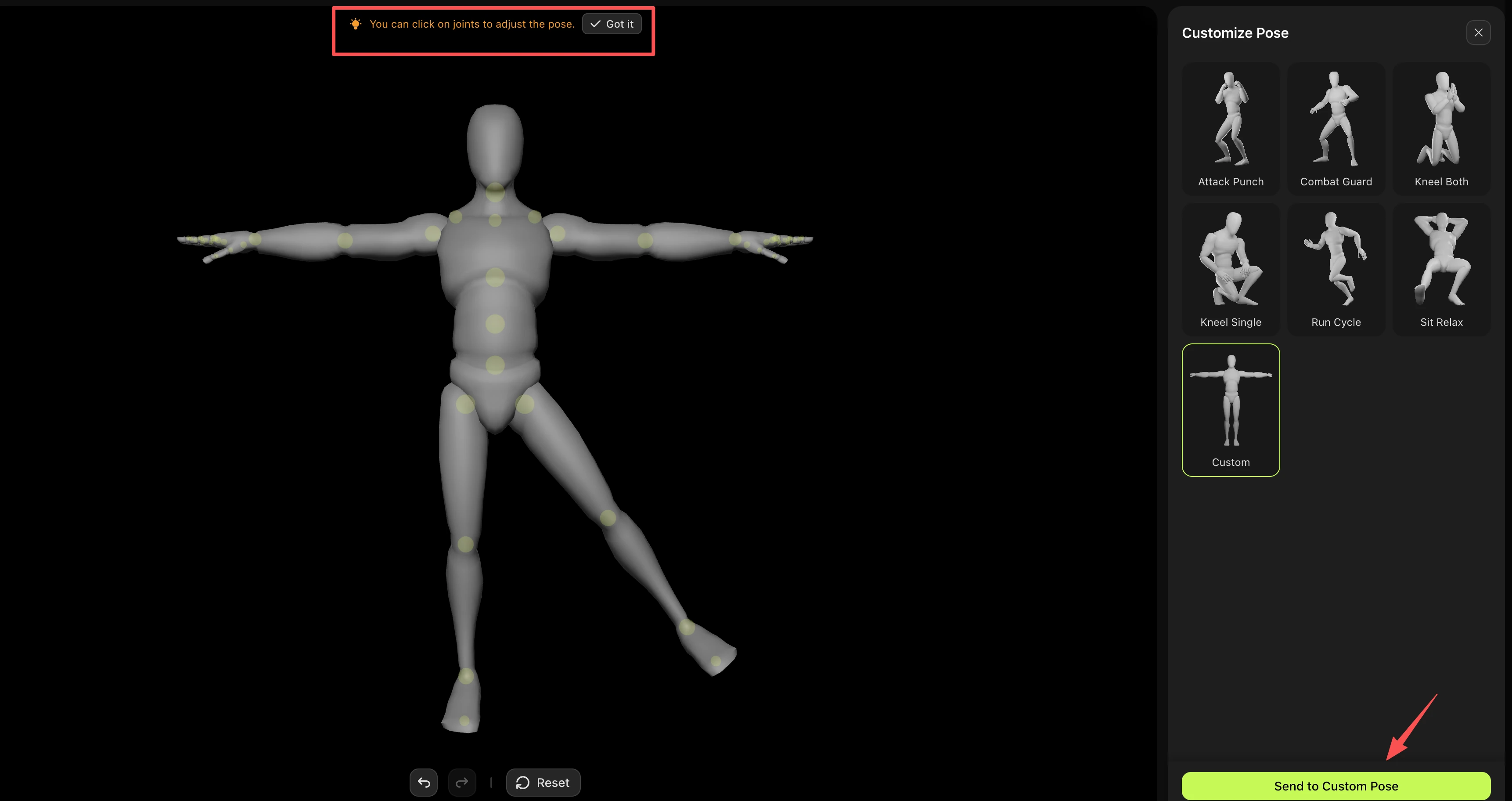
In the model generation window, click the "Custom" button to open the custom pose control window.
-
Click on the joints to adjust the pose to your liking or choose the preset custom pose.
-
Once satisfied, select "Send to Custom Pose" to generate.
✅ Cost: 0 credits
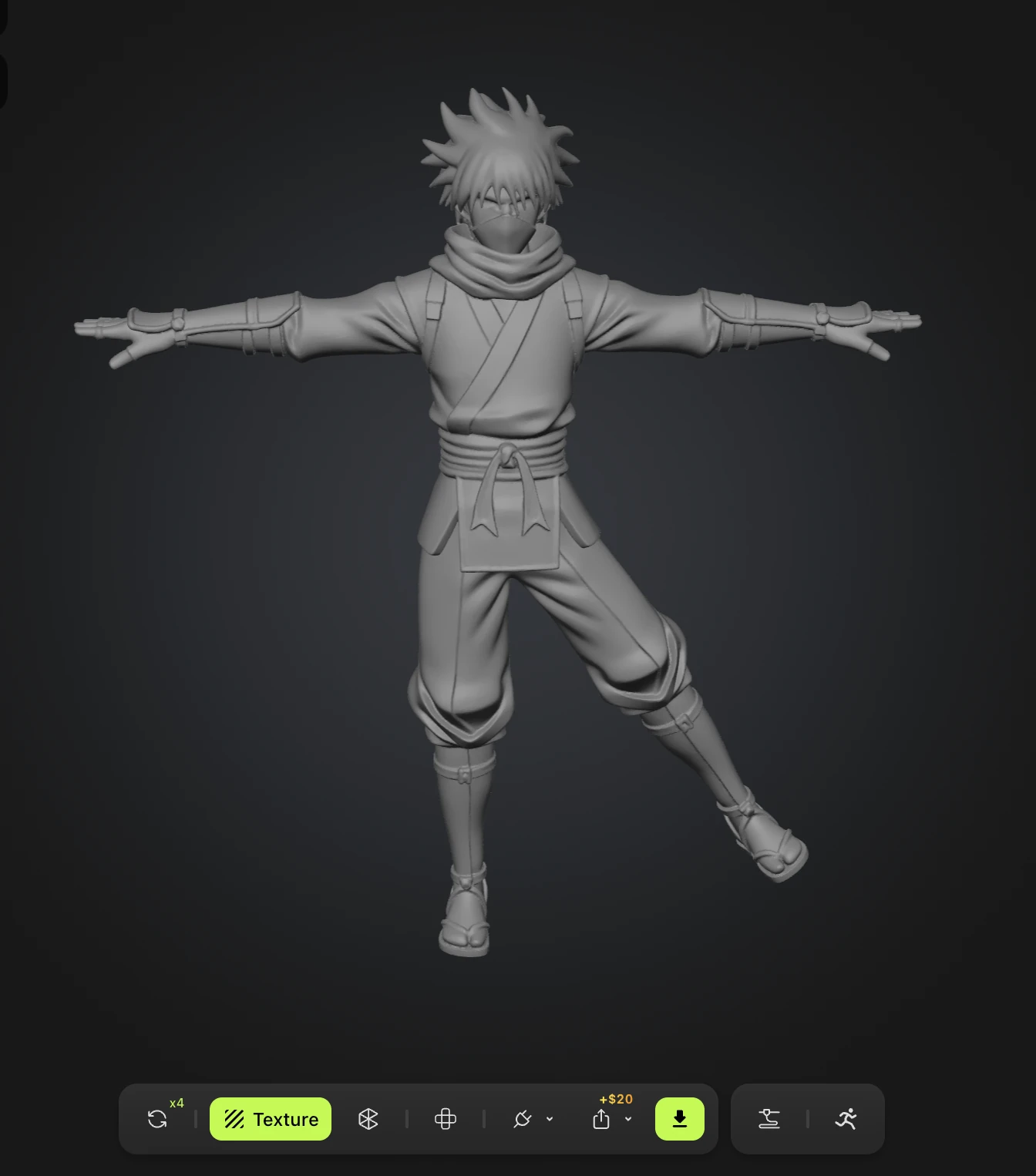
✅ Output: Your character generated in the custom pose you designed.
FAQ
1. What types of characters do the A/T-Pose and custom pose features support?
These features are designed specifically for humanoid characters. If your prompt or image input isn't clearly humanoid, Meshy will still attempt to generate a result, but the output quality may vary and is not guaranteed.
2. Will enabling pose controls affect my character's textures or materials?
No. The pose toggle only affects the pose of the character. It does not influence textures, materials, or any other design aspects of your model.
3. Can I use pose controls with any image?
No. Pose controls are not compatible with any image that may be detected as NSFW (Not Safe For Work). Using such images will always result in a failed generation.
4. What are common reasons for a pose generation to fail?
The most common causes include:
-
The input image is detected as NSFW content
-
The character is not humanoid, making pose recognition difficult
5. Why isn't my model generated in a T-pose, even though I clearly specified "T-pose" in the prompt when using Text to Model?
Simply mentioning "T-pose" in the prompt is not enough to influence the model's pose. We do not recommend using Text to Model to control the pose directly. Instead, we suggest the following workflow:
-
First, use Text to Image to generate a reference image of your character.
-
Then, use Image to Model and enable the T-pose toggle to properly adjust the model's pose.
This approach gives you much more reliable control over the final pose of your 3D model.