
Supported upload file formats
Meshy supports uploading 3D models in the following formats:
.fbx– Filmbox, widely used for rigged characters and animation pipelines.obj– Wavefront OBJ, a portable and broadly compatible mesh format.stl– Stereolithography, commonly used in 3D printing workflows.gltf– GL Transmission Format (text-based, with external assets).glb– GL Transmission Format (binary, single self-contained file)
Maximum file size: 100 MB per upload.
How to upload
To upload a 3D model in Meshy:
Go to Workspace and click "Upload Model" on the top-right corner and select your file from your device.
Wait for the upload to complete before starting the texturing process.
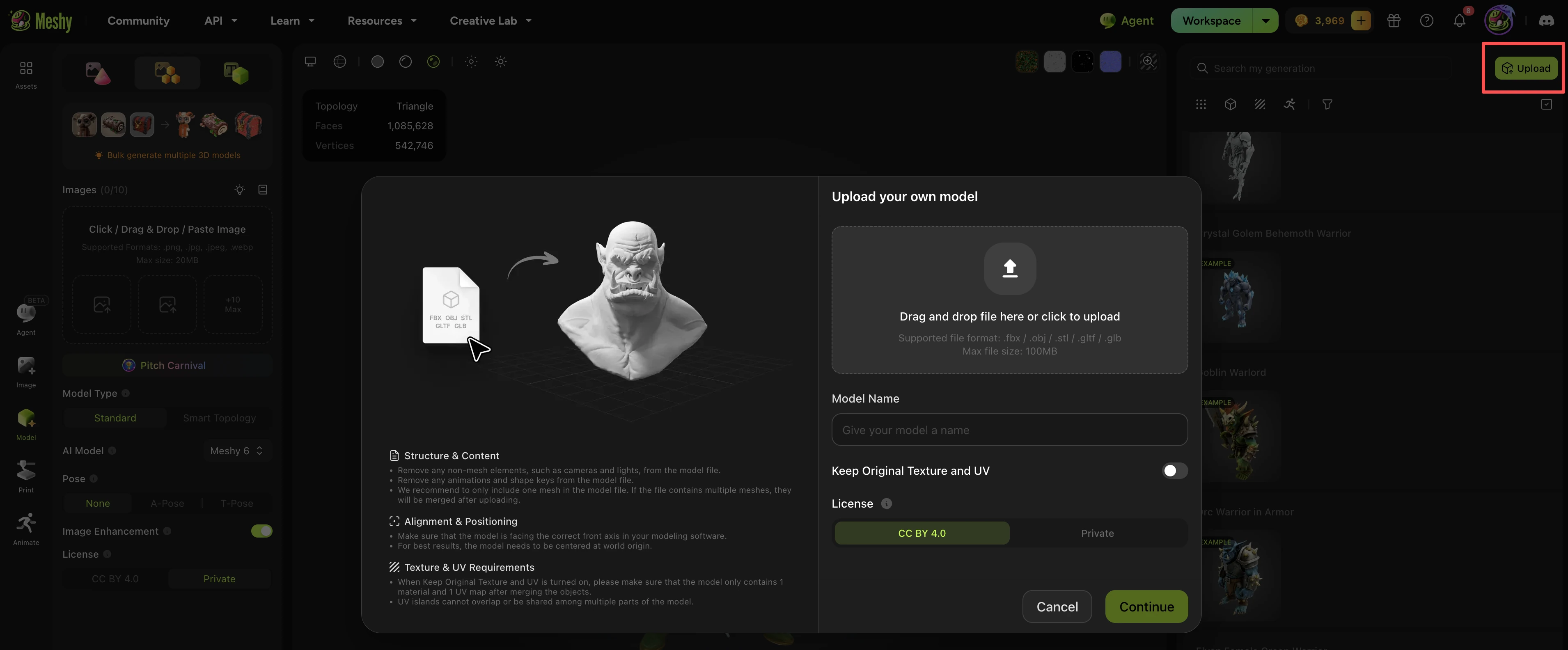
Upload requirements
Upload one model at a time — batch uploads are not supported.
File must be within the 100 MB size limit.
Structure & Content
Remove any non-mesh elements, such as cameras and lights, from the model file.
Remove any animations and shape keys from the model file.
We recommend to only include one mesh in the model file. If the file contains multiple meshes, they will be merged after uploading.
Alignment & Positioning
Make sure that the model is facing the correct front axis in your modeling software.
For best results, the model needs to be centered at world origin.
Texture & UV Requirements
When Keep Original Texture and UV is turned on, please make sure that the model only contains 1 material and 1 UV map after merging the objects.
UV islands cannot overlap or be shared among multiple parts of the model.
Export file formats
Once your model is generated or textured, you can download it in the following formats:
.fbx– Filmbox, ideal for game engines (Unity, Unreal) and animation pipelines.obj– Wavefront OBJ, widely compatible across most 3D software.usdz– Universal Scene Description (zip), optimized for AR on iOS.glb– GL Transmission Format (binary), best for web and real-time applications.stl– Stereolithography, standard for 3D printing.blend– Blender native format, for continued editing in Blender.3mf/.dmf– 3D Manufacturing Format, used in printing and fabrication workflows
FAQ
1.My upload failed — what should I check?
Verify that your file uses a supported format (.fbx, .obj, .stl, .gltf, or .glb) and is under 100 MB. If the file passes both checks, try re-exporting it from your 3D software to rule out corruption. If the problem persists, please reach out to our support team via the chat widget.
2.Which export format should I use?
It depends on where you plan to use the model:
Use
.glbfor web, WebXR, or real-time rendering.Use
.fbxfor game engines like Unity or Unreal Engine.Use
.usdzfor iOS AR experiences (Reality Composer, Quick Look).Use
.stlor.3mffor 3D printing.Use
.blendto continue editing in Blender.