The Meshy model viewer uses WebGL — a browser-based graphics API — to render 3D models in real time. When hardware acceleration is disabled, your browser falls back to software rendering, which is significantly slower and causes lag, stuttering, or choppy rotation.
Quick Checks Before You Start
Close unused browser tabs and background applications to free up GPU memory.
Make sure your browser is fully up to date.
If you're on a laptop, plug it in — power-saving mode can throttle GPU performance.
Try a different browser. Google Chrome offers the best WebGL performance and is our recommended browser.
Enable Hardware Acceleration
Chrome
Click the three dots in the top-right corner.
Select Settings.
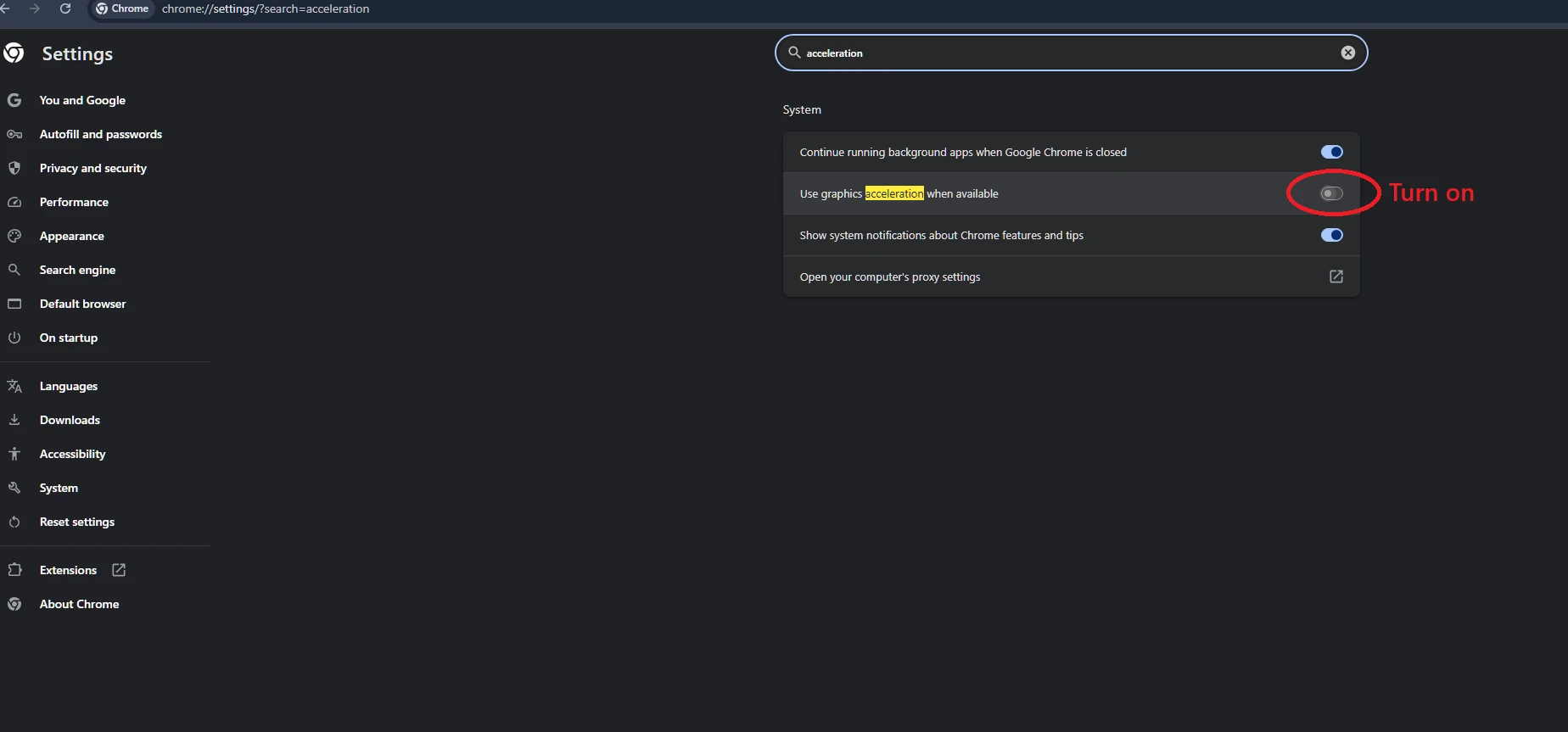
Search for Acceleration in the search bar.
Toggle on Use hardware acceleration when available.
Restart Chrome.
Tip: Confirm WebGL is active by going to chrome://gpu in your address bar. You should see WebGL: Hardware accelerated under Graphics Feature Status.
Firefox
Click the three horizontal lines in the top-right corner.
Select Settings (or Preferences on macOS).
Go to General and scroll down to Performance.
Uncheck Use recommended performance settings (if checked).
Check Use hardware acceleration when available.
Restart Firefox.
Tip: Go to about:support and check the WebGL Renderer field — it should show your GPU name, not "software".
Microsoft Edge
Click the three dots in the top-right corner.
Select Settings.
Go to System and performance.
Toggle on Use hardware acceleration when available.
Restart Edge.
Safari (macOS only)
Safari uses system-wide hardware acceleration by default.
Go to System Preferences → Displays → Graphics and ensure it is set to use the higher-performance GPU option (applies to MacBooks with dual GPUs).
Keep Safari updated to the latest version for best performance.
Note: Safari has more limited WebGL support compared to Chrome. If you continue to experience issues, we recommend switching to Chrome.
Brave, Arc, and Other Chromium-Based Browsers
If you're using any other Chromium-based browser, the steps are similar to Chrome: go to Settings → System and enable Use hardware acceleration when available, then restart the browser.
Still Lagging? Additional Steps
Update your GPU drivers — Outdated drivers are a common but overlooked cause of WebGL issues. Visit your GPU manufacturer's website (NVIDIA, AMD, or Intel) to download the latest drivers.
Disable browser extensions — Some extensions (ad blockers, privacy tools, or script managers) can interfere with WebGL. Try disabling them or open Meshy in an Incognito/Private window to test.
Check your GPU selection on laptops — If your laptop has both an integrated GPU and a dedicated GPU, make sure your browser is using the dedicated one. On Windows, you can configure this in your GPU control panel (NVIDIA Control Panel or AMD Radeon Software → Manage 3D Settings → Program Settings).
Close GPU-intensive applications — Running games, video editors, or other 3D apps alongside Meshy can compete for GPU resources.
FAQ
1. Will enabling hardware acceleration affect my battery life?
It can slightly increase GPU usage, but the impact is minimal during normal use. Software rendering is actually more CPU-intensive overall. For extended 3D viewing sessions, we recommend plugging in your laptop.
2. Why does lag only happen with certain models?
Models with a high polygon count or large textures require significantly more GPU memory and processing power. Complex or highly detailed meshes will naturally be more demanding to render in real time — this is expected behavior, not a bug.
3. Does the Meshy model viewer work on mobile browsers?
The Meshy workspace is optimized for desktop browsers. Mobile browsers have limited WebGL support and reduced GPU capabilities, which can result in poor performance or visual glitches. For the best experience, use a desktop or laptop.
4. What's the best browser for Meshy?
Google Chrome is recommended for the best WebGL performance and compatibility. Microsoft Edge (Chromium-based) is also a reliable option. Firefox works well but may occasionally have minor rendering differences.
5. I enabled hardware acceleration but the viewer still lags. What else can I try?
Update your GPU drivers to the latest version.
Disable all browser extensions and retest in an Incognito/Private window.
Close other GPU-intensive applications running in the background.
Switch to Google Chrome if you're on a different browser.
If none of the above resolves the issue, reach out to Meshy Support with your browser version, OS, and GPU details so we can investigate further.
6. How do I verify that hardware acceleration is actually working?
In Chrome, navigate to chrome://gpu — look for WebGL: Hardware accelerated in the Graphics Feature Status list. In Firefox, go to about:support and check the WebGL Renderer field. If it shows your GPU name (e.g., "NVIDIA GeForce RTX…"), hardware acceleration is active. If it shows "software", hardware acceleration is not working and you should revisit the steps above or update your drivers.