
Before you start
DCC Bridge requires a Pro plan or higher. It isn't available on the Free or Starter plans.
DCC Bridge works on a computer only. It isn't available on mobile.
On Free or Starter, download the model and import it manually. How many models you can download depends on your plan.
Step 1: Install the plugin
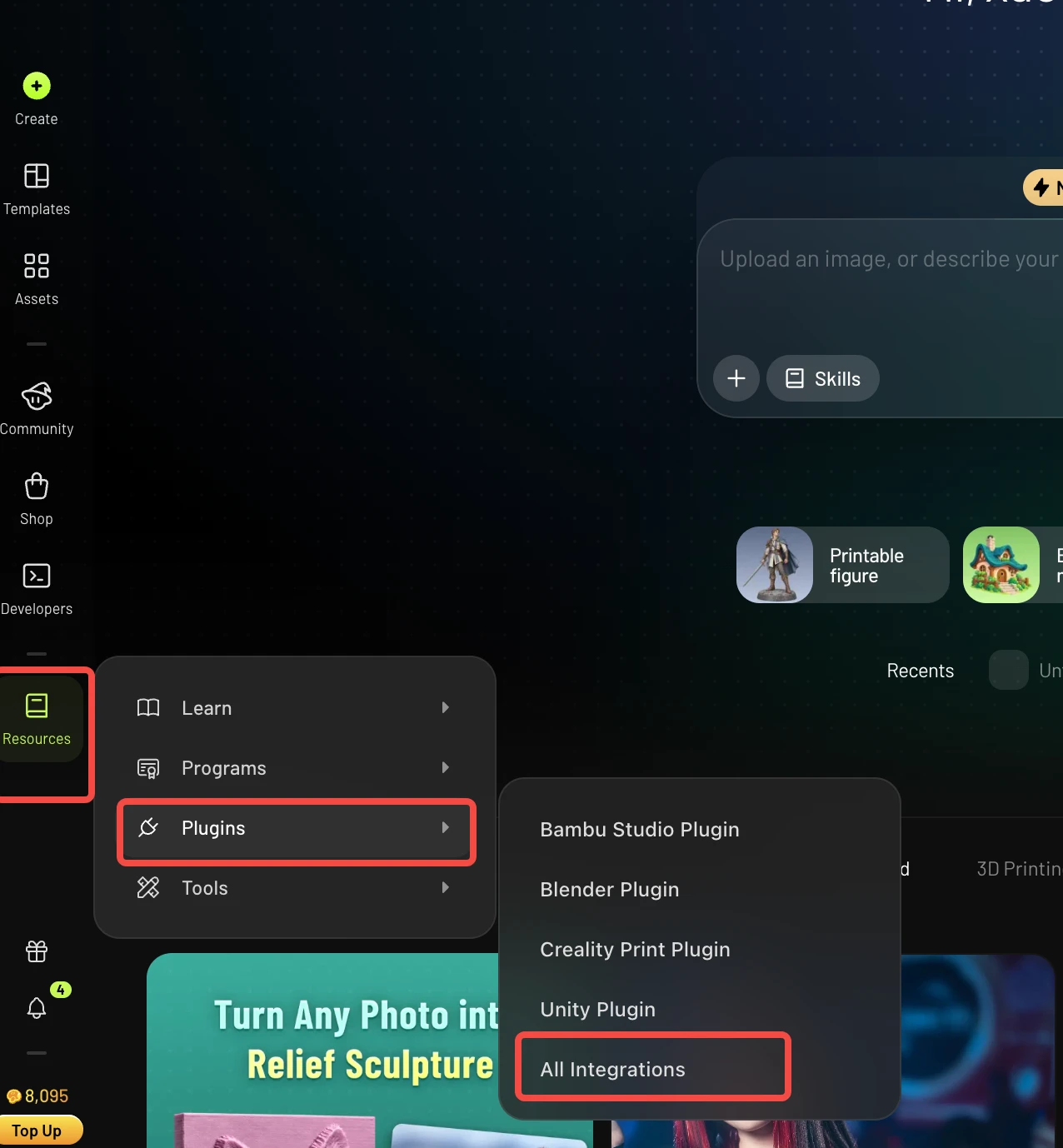
In the Meshy web app, click Resources at the bottom of the left sidebar.
Select Plugins, then choose your software.
On the plugin page that opens, download the plugin.
Install it by following the official docs.
Step 2: Start the bridge in your software
Before you send a model, the target software must be open and its bridge must be running.
Step 3: Send the model from your workspace
Select the model in your workspace.
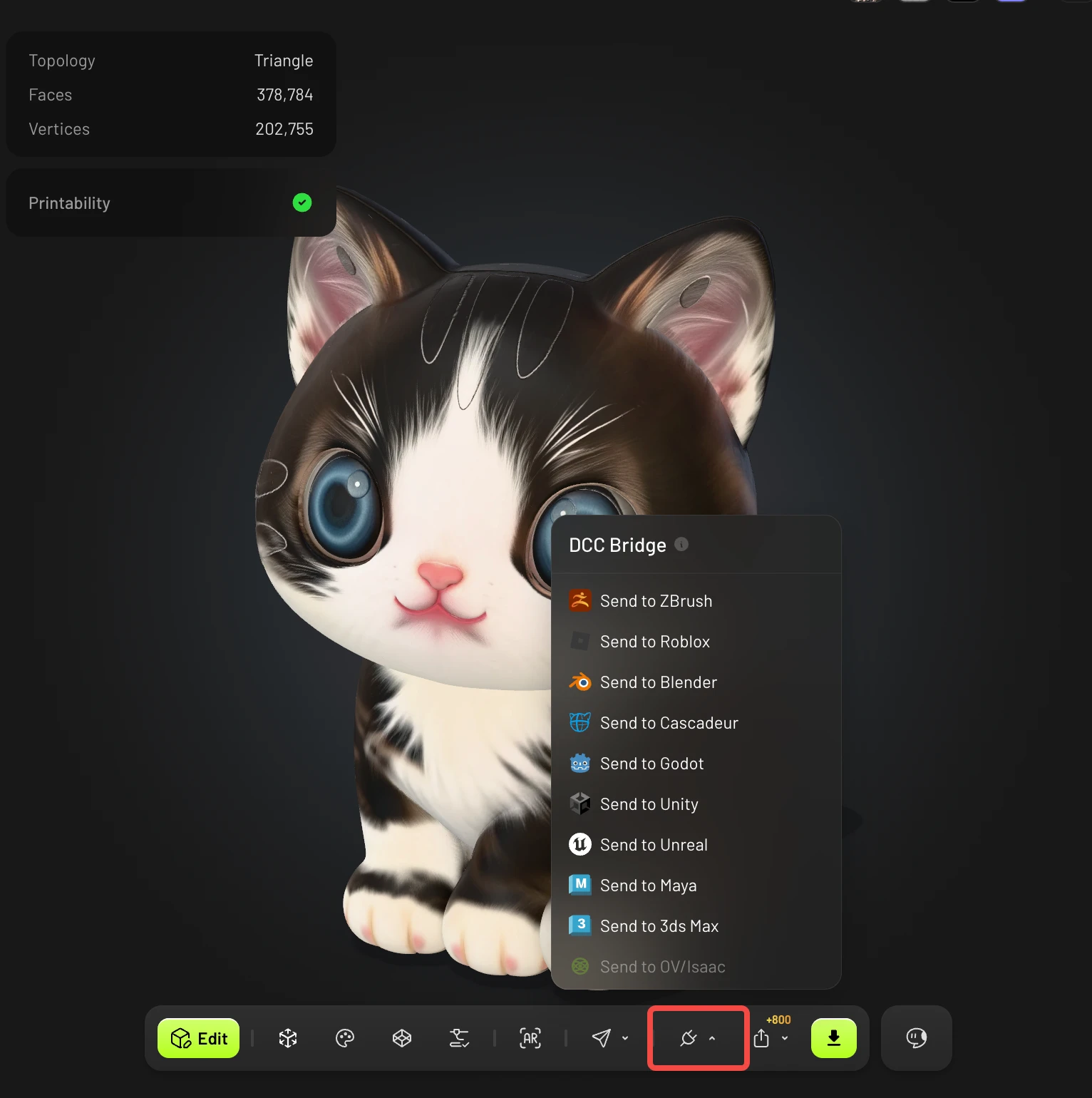
Click the following button to see the pop-up.
From there, you will see the various third-party software options to send to via DCC Bridge.
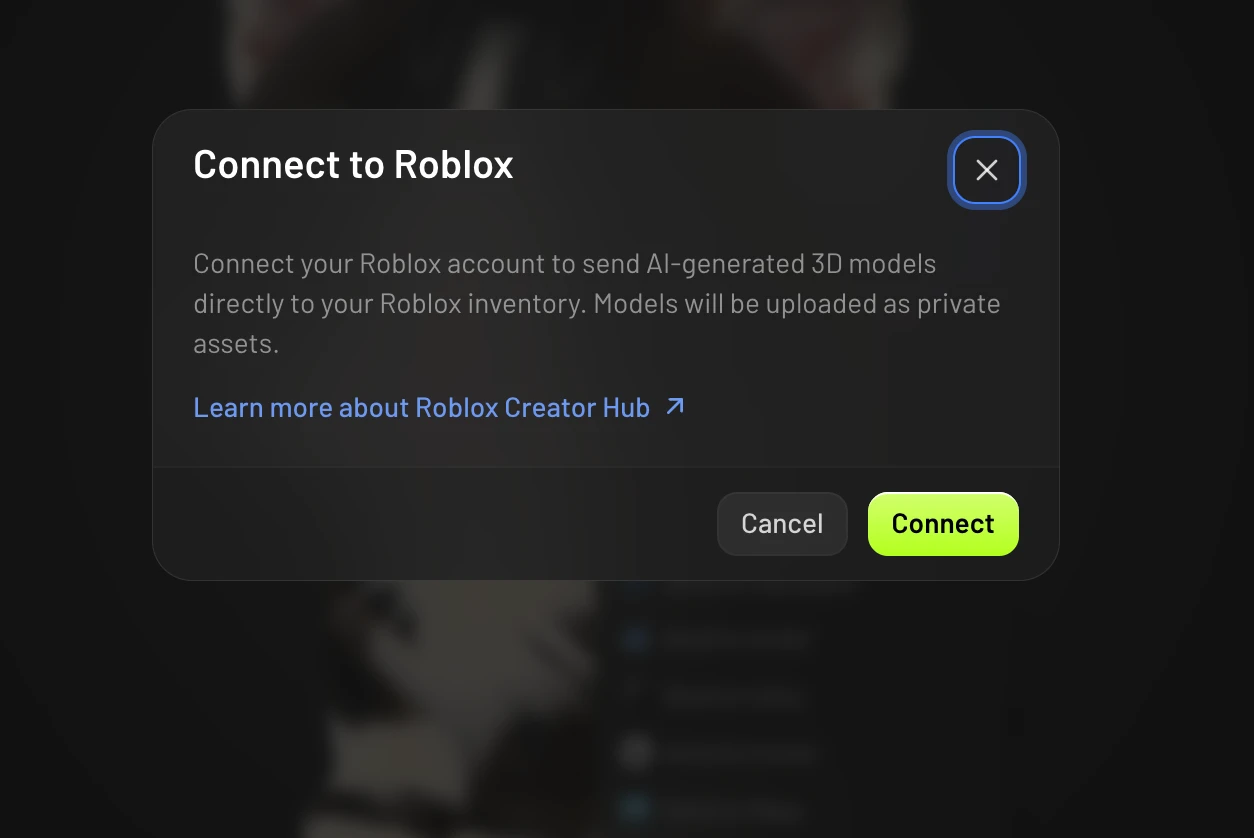
Tips: Roblox, first time: click Send to Roblox → Continue → Connect, then sign in and authorize on roblox.com. You only need to connect once.
To learn more about the DCC Bridge, please refer to the following tutorial articles:
FAQ
1. Meshy shows "Failed to send model", or nothing happens. What should I check?
Make sure the software is open and the bridge is running.
If your browser asks for local network access, allow it for Meshy.
2. Why is my model gray in Blender?
The viewport is in Solid mode, which doesn't show textures. The import still worked. Press Z and choose Material Preview.