
From Meshy to Manifold: Fixing Hollow Models for 3D Printing
Why making a model manifold fixes hollow prints
When preparing a Meshy model for 3D printing, one of the most important requirements is that the model must be manifold.
A manifold model is a completely closed, watertight shape — similar to a sealed container. This means there are no holes, missing faces, or broken edges in the mesh. This means there are no holes, missing faces, or broken edges in the mesh. The surface fully encloses a volume, clearly defining what is inside and what is outside.
If a model is non-manifold, the 3D printer's slicer software cannot correctly interpret its volume. As a result, the slicer may not know where solid material should exist.
Common problems caused by non-manifold models
These issues may occur when slicing or printing:
Parts of the model printing hollow when they shouldn't
Missing walls, layers, or surfaces
Incorrect or unusual infill patterns
Sections of the model not printing at all
The slicer failing to slice the model entirely
This happens because the slicer relies on a closed surface to calculate walls, infill, and structural layers. If the mesh is open or broken, the slicer may treat it as a thin surface instead of a solid object.
Why fixing manifold issues usually solves the hollow model problem
By fixing the model and making it manifold, you provide the slicer with a properly enclosed volume. This allows it to correctly generate:
Outer walls
Internal infill
Top layers
Bottom layers
A structurally sound final print
In short, converting your Meshy model into a manifold mesh turns it from a visual surface into a properly defined solid object that can be printed reliably.
Note:
Hollow prints can also be caused by slicer settings such as infill being set to 0%. However, non-manifold geometry is one of the most common causes of unexpected hollow prints, especially with AI-generated models.
Step 1: We recommend installing the Blender Bridge plugin
Meshy for Blender is a Blender plugin that enables seamless import of MeshyAI-generated models. With this plugin, you can effortlessly load and manage 3D assets, significantly enhancing your workflow efficiency.
Step 2: Open Blender Preferences
1. Open Blender
2. Click Edit > Preferences
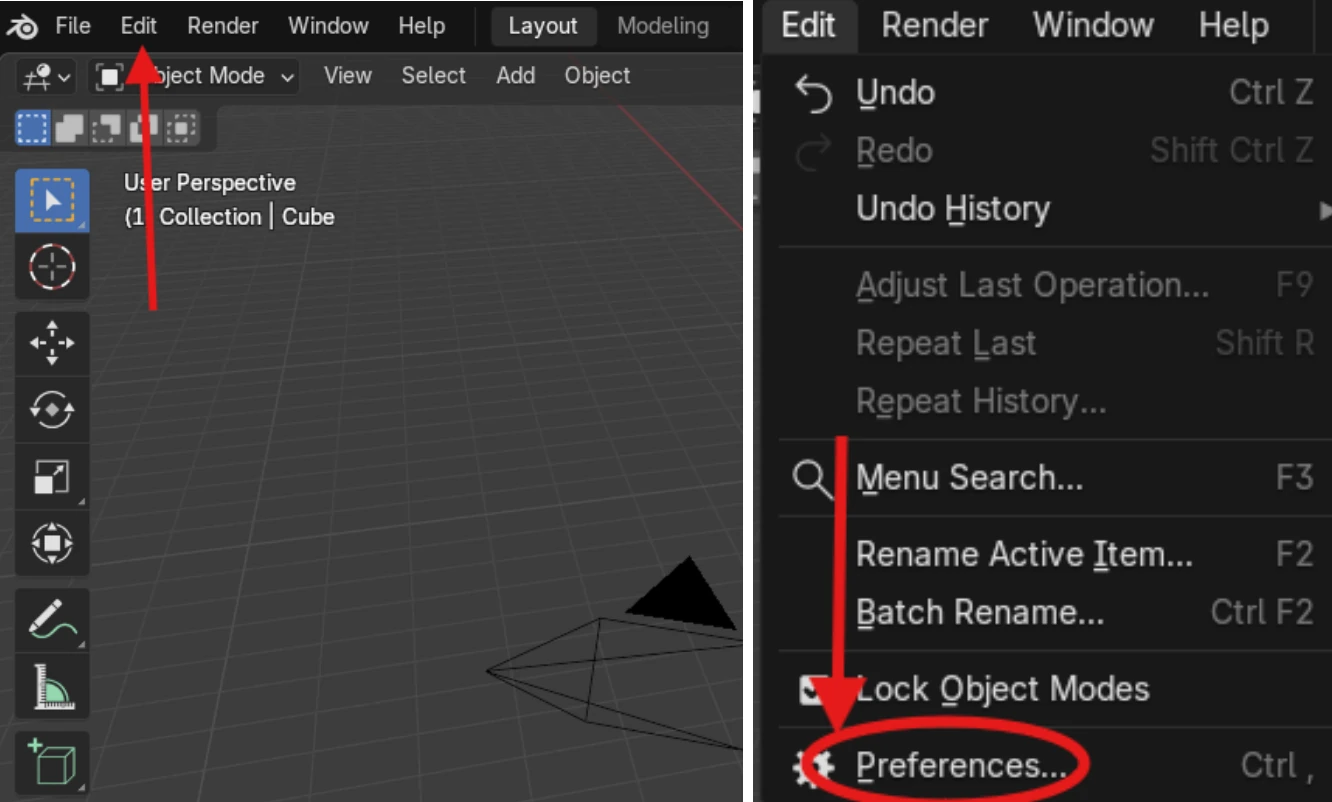
Install and enable the 3D Print Toolbox
1. In Preferences, click the Add-ons tab
2. In the search bar, type: 3D Print
3. Enable the checkbox for Mesh: 3D Print Toolbox
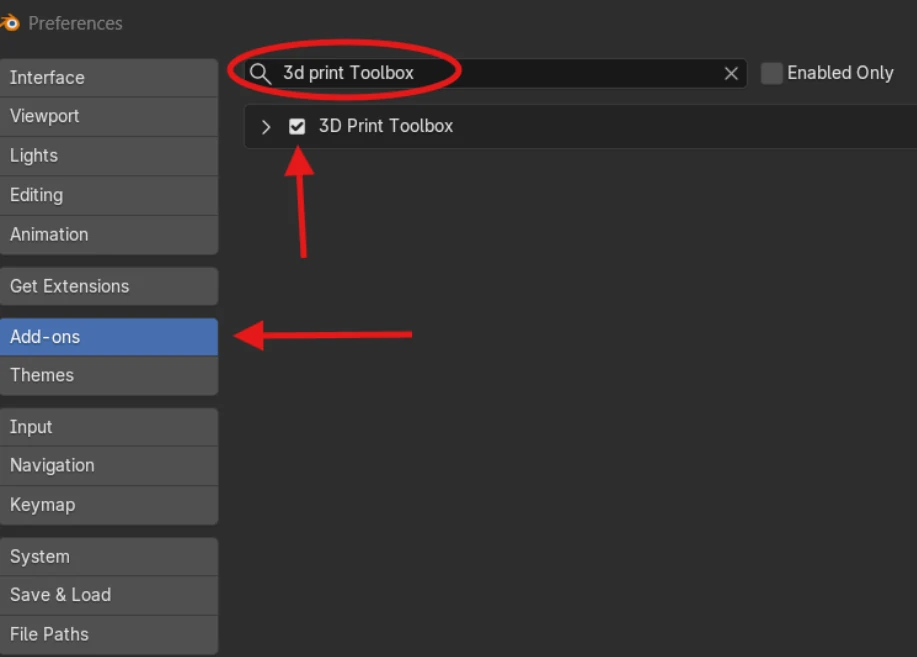
Note: In Blender 4.0 and later, add-ons are found under Edit > Preferences > Get Extensions. The steps above apply to Blender 3.x. The 3D Print Toolbox may need to be installed as a Legacy Add-on in newer versions.
If installing manually:
1. Click Install… (or Install from Disk in newer Blender versions)
2. Select the addon file
3. Enable the addon after installation
Once enabled, the 3D Print Toolbox will be available in Blender.
Step 3: Open the 3D Print Toolbox panel
After importing your Meshy model into Blender:
1. Open the right-side toolbar by either:
- Pressing N on your keyboard, or
- Clicking the small arrow on the right edge of the viewport
2. Click the 3D Print tab to open the toolbox
Step 4: Attempt to automatically Fix the model and make it manifold
1. Select your model in the viewport
2. Open the 3D Print Toolbox panel
3. Click "Clean Up"
4. Click the "Make Manifold" button
This will automatically attempt to fix holes, broken edges, and other non-manifold issues so the model becomes a fully closed, printable solid.
Note: For complex AI-generated meshes, Make Manifold may not resolve all issues on its own. If problems persist, see the Troubleshooting section below for additional repair steps.
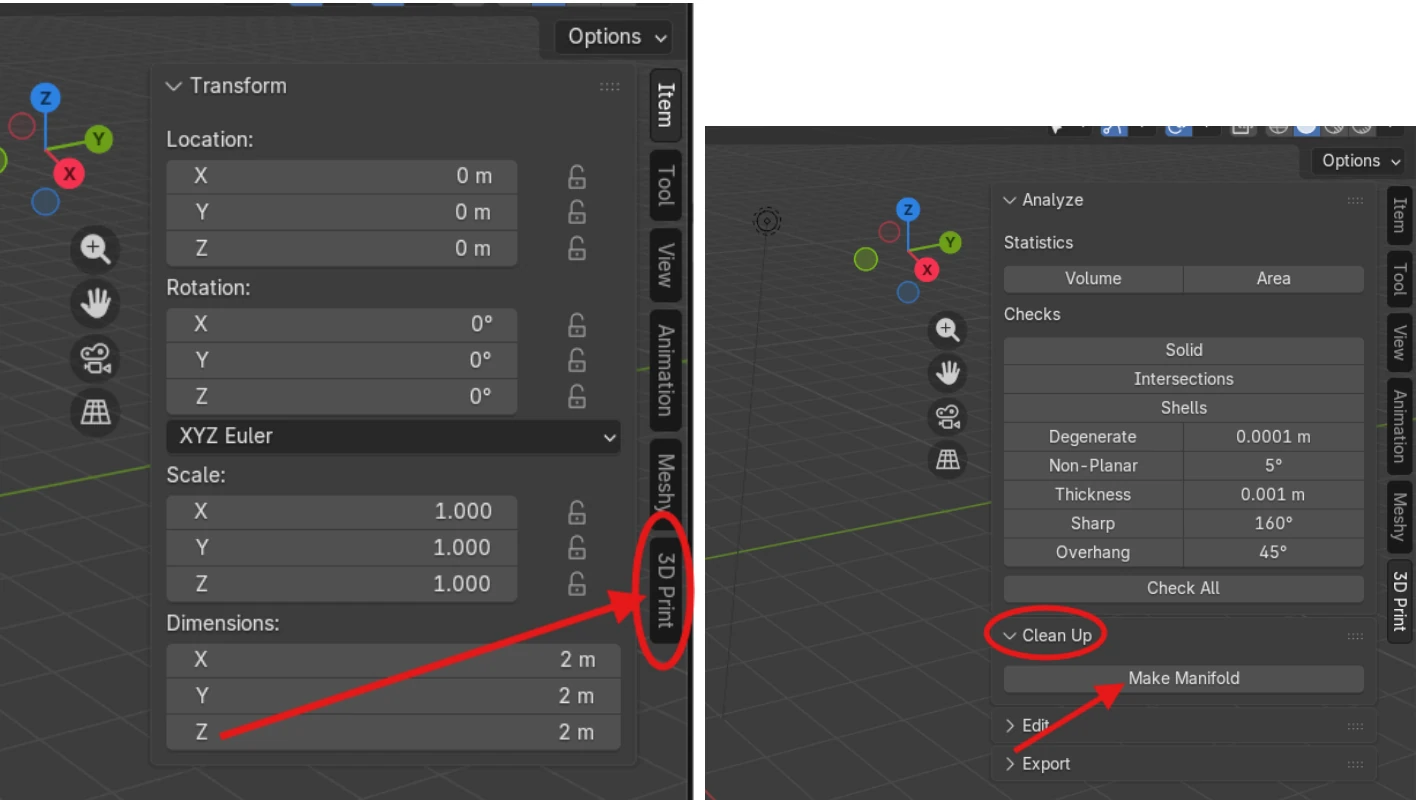
Result
In most cases, your model should now be manifold and ready for proper slicing. The slicer should now correctly be able to generate walls, infill, top and bottom layers, and no longer be hollow:
Troubleshooting:
If your model is still hollow after making it manifold
In some cases, clicking Make Manifold may not completely fix the model. This is especially common with complex AI-generated meshes.
Here are additional checks you can perform:
1. Verify the model is truly manifold
After clicking Make Manifold, you should confirm the fix was successful.
In the 3D Print Toolbox panel:
Click Check All
Look for the Non Manifold result
If the result shows:
0 non-manifold edges → The model is properly manifold
Any number above 0 → Additional cleanup is required
If non-manifold edges remain, repeat Clean Up → Make Manifold, or try the advanced fixes below.
2. Apply Solidify modifier if the model has zero thickness
Some AI-generated models are made of infinitely thin surfaces, which cannot print properly even if technically manifold.
To fix this:
Select your model
Go to the Modifiers tab (wrench icon)
Click Add Modifier → Solidify
Set Thickness to a small value, such as:
0.002 m (2 mm), or
Adjust based on your print scale
Click Apply
This gives the model real thickness so the slicer can generate walls.
Note: After applying the Solidify modifier, you may want to return to the 3D Print Toolbox and click Check All again. The Solidify modifier can sometimes create self-intersecting geometry on complex models, which introduces new non-manifold issues that need to be fixed.
3. Apply all transforms before exporting
Incorrect scale or transforms can cause slicing issues.
To apply transforms:
Select your model
Press Ctrl + A
Click All Transforms
This ensures the model exports correctly.
Further Troubleshooting: Slicer settings that can cause hollow prints
Even with a manifold model, slicer settings may intentionally create hollow prints.
Check the following settings in your slicer software:
Infill percentage
If infill is set to:
0% → The print will be hollow by design
Recommended values:
10–20% → Lightweight prints
20–40% → Strong functional prints
Wall count / Perimeter count (Wall thickness)
If wall count is too low, or a wall is too thin - prints may appear hollow or weak.
Recommended:
Minimum: 2 walls (for basic prints)
Recommended: 3–4 walls (for stronger, more durable prints)
Typical wall thickness: 0.8–1.6 mm (depending on your nozzle size)
Top and bottom layers
If top layers are set to 0, the print will be open.
Recommended:
3–6 top layers
3–6 bottom layers
Further Troubleshooting: If Blender cannot fully repair the model
Very complex meshes may require alternative repair tools.
You can try:
Option 1: Use Blender's additional cleanup tools
In Edit Mode:
Select the model
Press Tab to enter Edit Mode
Press A to select all
Click:
Mesh → Clean Up →
Merge by Distance
Fill Holes
Then retry Make Manifold.
Note: When using Merge by Distance, check the threshold value in the bottom-left popup after clicking. The default (0.0001 m) may be too small for some meshes. Try increasing it slightly (e.g., 0.001 m), but avoid setting it too high as this can collapse fine details.
Option 2: Recalculate normals
AI-generated models often have flipped or inconsistent face normals, which can cause the slicer to misinterpret which side of a surface is "inside" and which is "outside." This can result in hollow sections, inverted infill, or missing surfaces.
To fix this:
Select your model
Press Tab to enter Edit Mode
Press A to select all
Click Mesh > Normals > Recalculate Outside
Press Tab to return to Object Mode
Then re-export and check your slicer preview.
Option 3: Use dedicated mesh repair tools
Some tools specialize in repairing difficult meshes:
Microsoft 3D Builder (Windows)
Meshmixer
Netfabb
These tools can automatically repair complex geometry.
How to confirm your model is ready for 3D printing
Your model is ready when:
3D Print Toolbox shows 0 non-manifold edges
The slicer preview shows:
Walls
Infill
Top layers
Bottom layers
The slicer does not show missing sections