
The Image Enhancement toggle enables automatic pre-processing before your image enters Meshy's 3D generation pipeline.
When enabled, your image is converted into a clean, neutral-toned optimized version specifically for Meshy's 3D reconstruction. Think of it as stripping the image down to its pure structural form — preserving important shapes and fine details while removing visual noise and clutter that could confuse the 3D AI.
In most cases, we recommend keeping it ON for cleaner, more consistent results. The result is usually higher model quality, at the slight cost of some control — for example, small details may not align as closely with the original input image, and colors can be subtly normalized during enhancement (for instance, a turquoise object may shift toward light blue). If exact color fidelity is important to you, consider turning it off.
Where to find it
You can find the Image Enhancement toggle in the Image to 3D Model Generation workspace.
Note: This feature is currently only available for Meshy 6 and Meshy 7 generations.
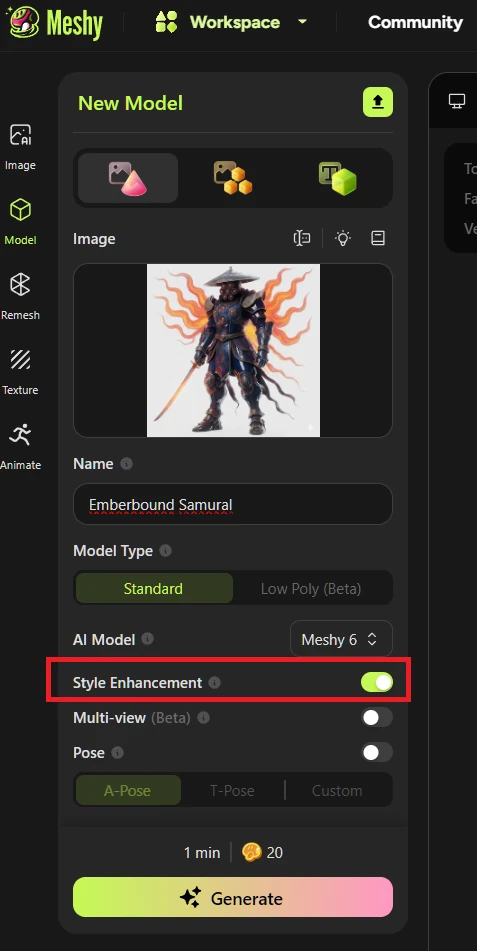
Why does leaving Image Enhancement toggled ON usually help?
Meshy's 3D AI works best when it can easily read the 3D shape of your object. Many images and real-world photos often contain:
-
Busy or cluttered backgrounds
-
Strong shadows, highlights, or dramatic lighting
-
Shiny, reflective, or highly textured surfaces
-
Tiny details which don't transfer well to 3D
-
Poorly contrasting 3D depth and shapes
-
Branding, unwanted text, or visual overlays
-
Unwanted extra objects which may end up in the final generation
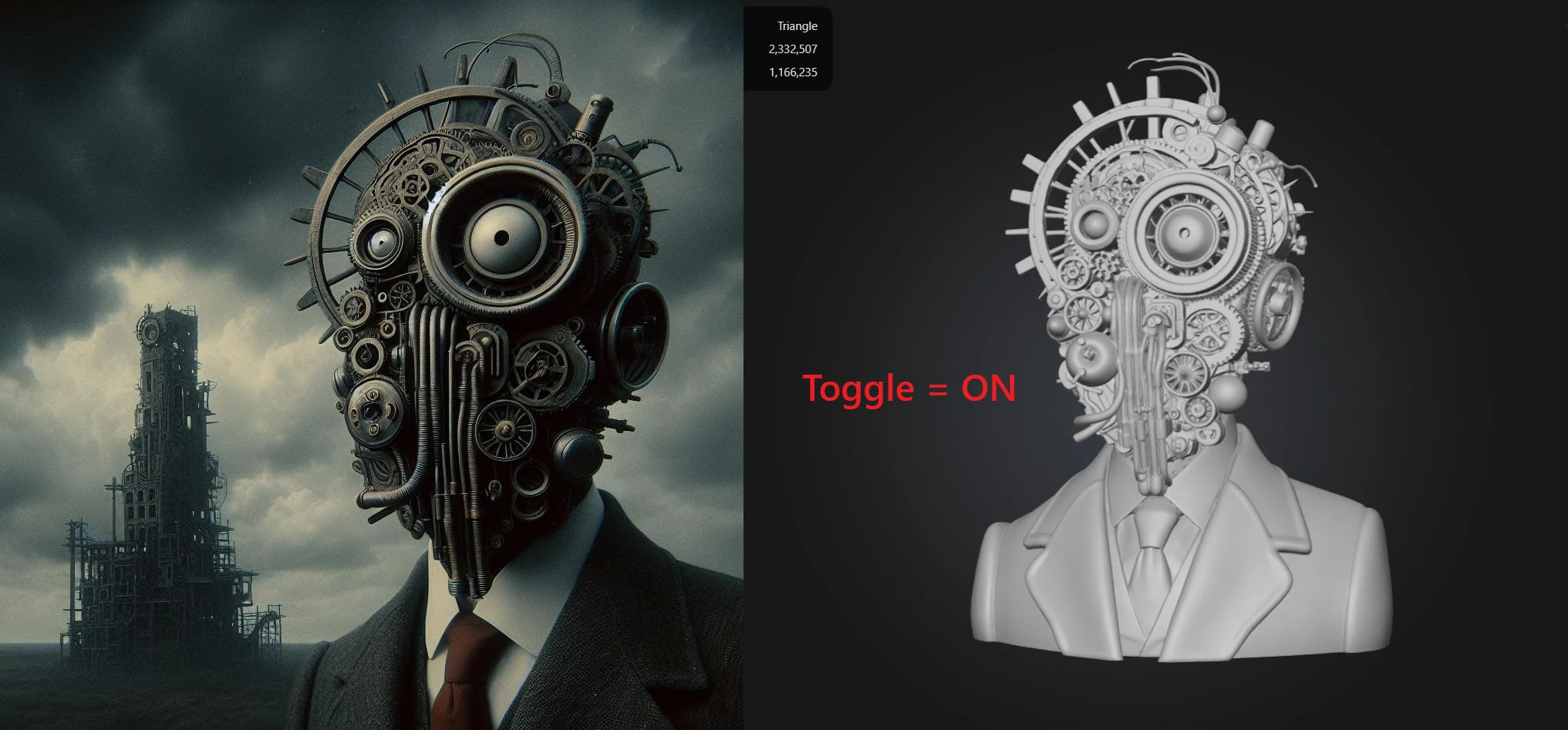
The Image Enhancement Toggle removes these distractions so the AI can focus on geometry. This typically results in:
-
Cleaner 3D meshes
-
Better details overall
-
Better recognition of shapes
-
Better edge and silhouette definition
-
Fewer artifacts and inconsistencies
-
More predictable and usable outputs
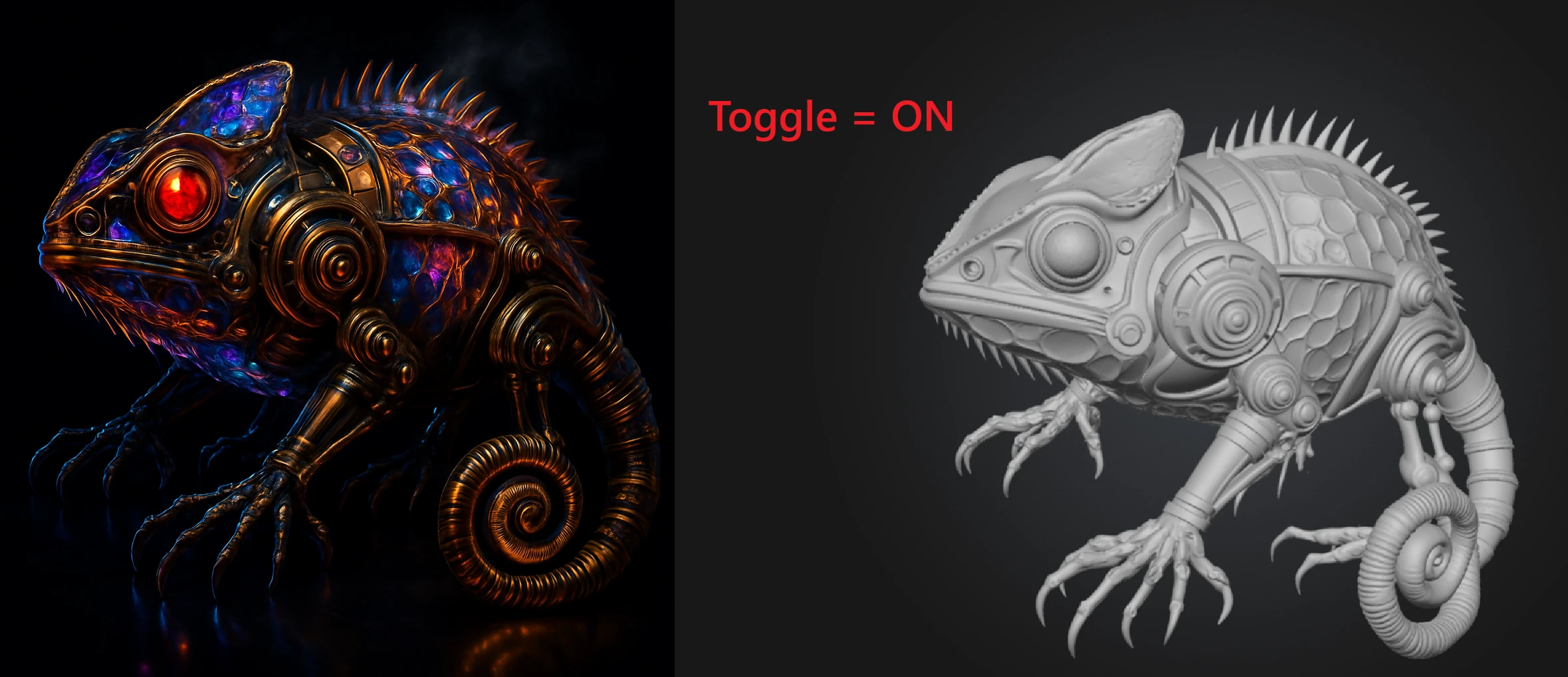
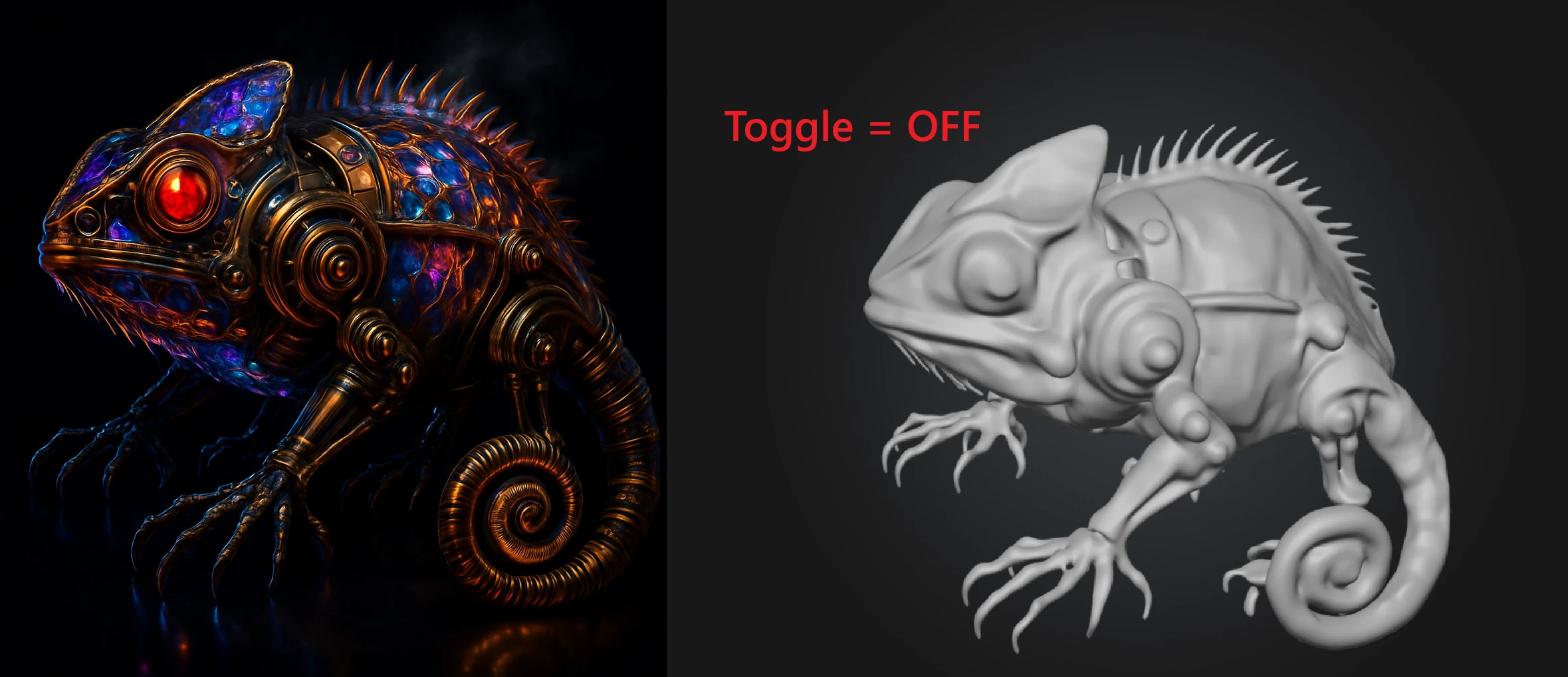
When should I use it?
Turn it ON when:
-
The start image isn't already optimal for Meshy to read (You can learn more about this here)
-
The image is AI generated or low resolution
-
There are strong shadows, dramatic lighting, or reflections
-
The surface is reflective
-
The image contains text, logos, or overlays you want removed
-
You want the most stable, clean, and consistent 3D output
-
You want the best overall result, at the potential cost of some details being slightly different to your original image
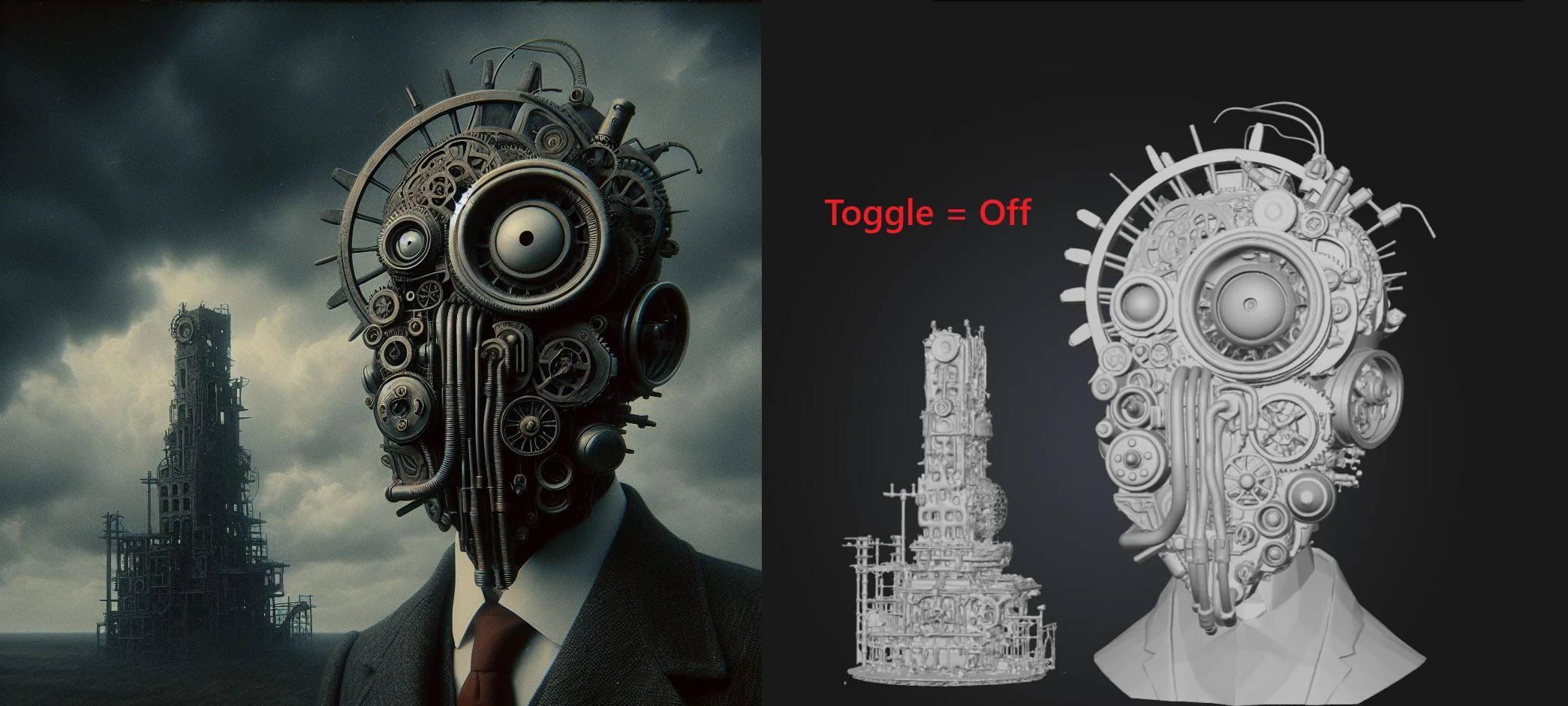
You may choose to turn it OFF if:
-
Your image is already clean, high resolution, well lit and easily readable by Meshy
-
Meshy is removing or isolating objects in your original image incorrectly
-
You want to retain specific or unusual tiny details, complex surface textures or patterns
-
You want the strongest direct visual alignment to the original image possible at the cost of readability, and potentially quality
-
You intentionally want the image's lighting or color to influence the outputs mesh surface
-
Exact color accuracy matters — image enhancement can subtly normalize colors (e.g., a turquoise surface may shift toward light blue)
Using Image Enhancement via the API
If you're using the Meshy API to generate 3D models programmatically, you can control this behavior using the image_enhancement boolean parameter in your Image to 3D requests:
-
image_enhancement: true— Enables pre-processing (recommended default) -
image_enhancement: false— Skips pre-processing; only recommended when your input image is already clean, well-lit, and optimized for 3D generation
Note: Real-world API testing with identical inputs consistently shows that image_enhancement: false produces lower quality results. We recommend keeping it enabled unless you have a specific reason to bypass it.
Frequently Asked Questions
Does image enhancement improve model quality?
In most cases, yes. Image enhancement cleans up noisy, cluttered, or poorly lit images before 3D generation, which typically leads to cleaner meshes, better shape recognition, and fewer artifacts. For the majority of inputs, keeping it ON produces a noticeably better result.
Will image enhancement change the colors of my model?
It can. The pre-processing step normalizes your image for 3D reconstruction, which may subtly shift certain colors — for example, a turquoise object might appear as light blue in the output. If exact color fidelity is important, turn image enhancement OFF so the original colors influence the mesh surface directly.
My image is already clean and well-lit. Should I still use it?
Not necessarily. If your image is already optimized — clean background, good lighting, sharp detail, no reflections — you may get equally good or even better results with enhancement turned OFF, since the pre-processing step won't have much noise to remove and may over-smooth fine details.
Why is Meshy removing or changing parts of my image?
This is a common side effect of image enhancement. The pre-processing step can isolate the main subject, remove backgrounds, and simplify visual complexity — which occasionally affects elements you intended to keep. Try turning image enhancement OFF to give the AI a more faithful read of your original image.
Is image enhancement available for all Meshy models?
Currently, image enhancement is only available for Meshy 6 and Meshy 7 generations. It is not supported for earlier model versions.
Can I control image enhancement via the API?
Yes. Pass image_enhancement: true or image_enhancement: false in your Image to 3D API request. The default behavior follows the same recommendation as the web app — enable it for most inputs, and disable it only when your source image is already highly optimized.