
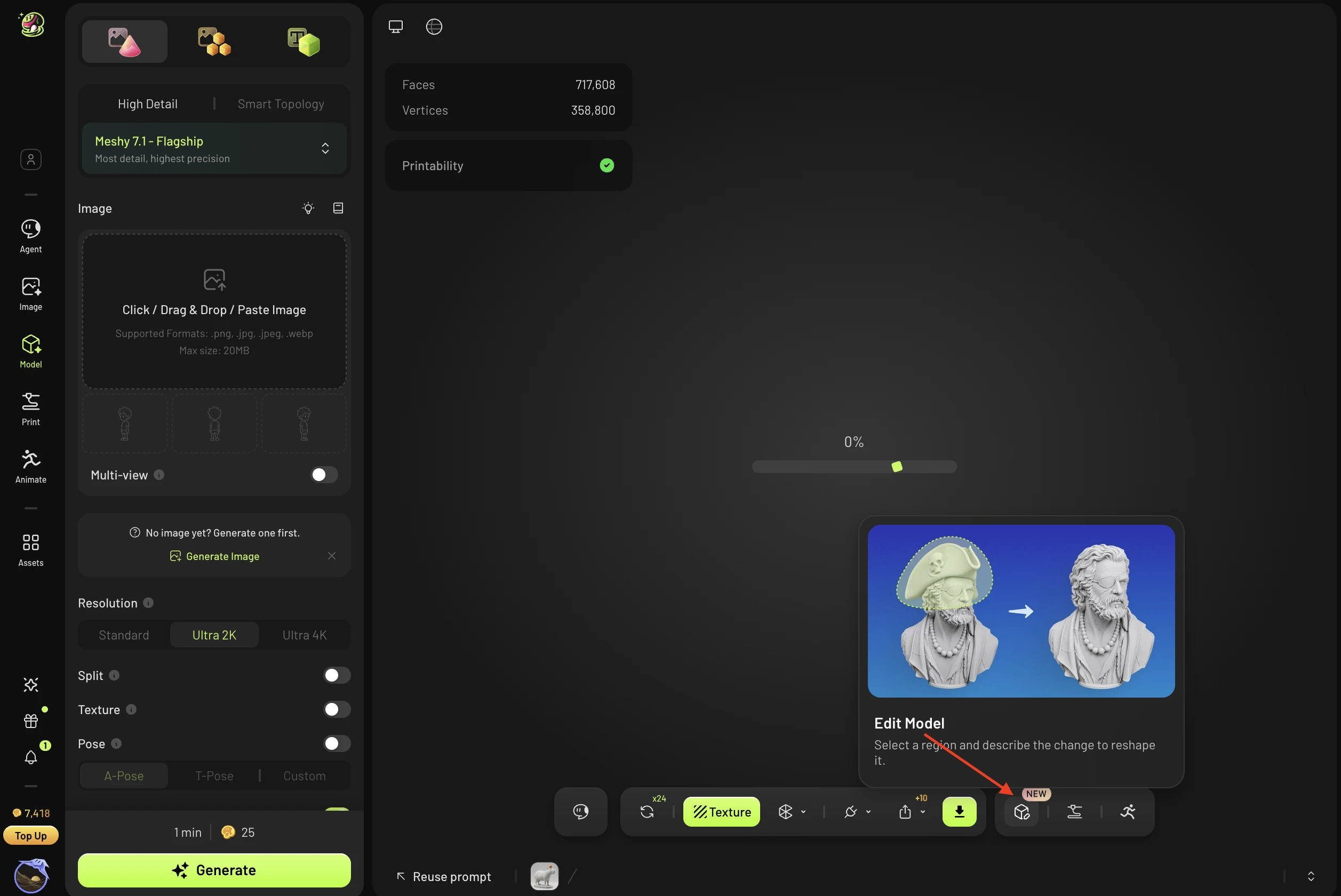
Meshy Edit launched in October 2026. It changes the geometry of a model you generated with Meshy: you select the part you want to change, describe the result you want in words, and Meshy generates a new version of the model with that change applied. Every edit creates a new model, and the original is kept.
Where to use Meshy Edit
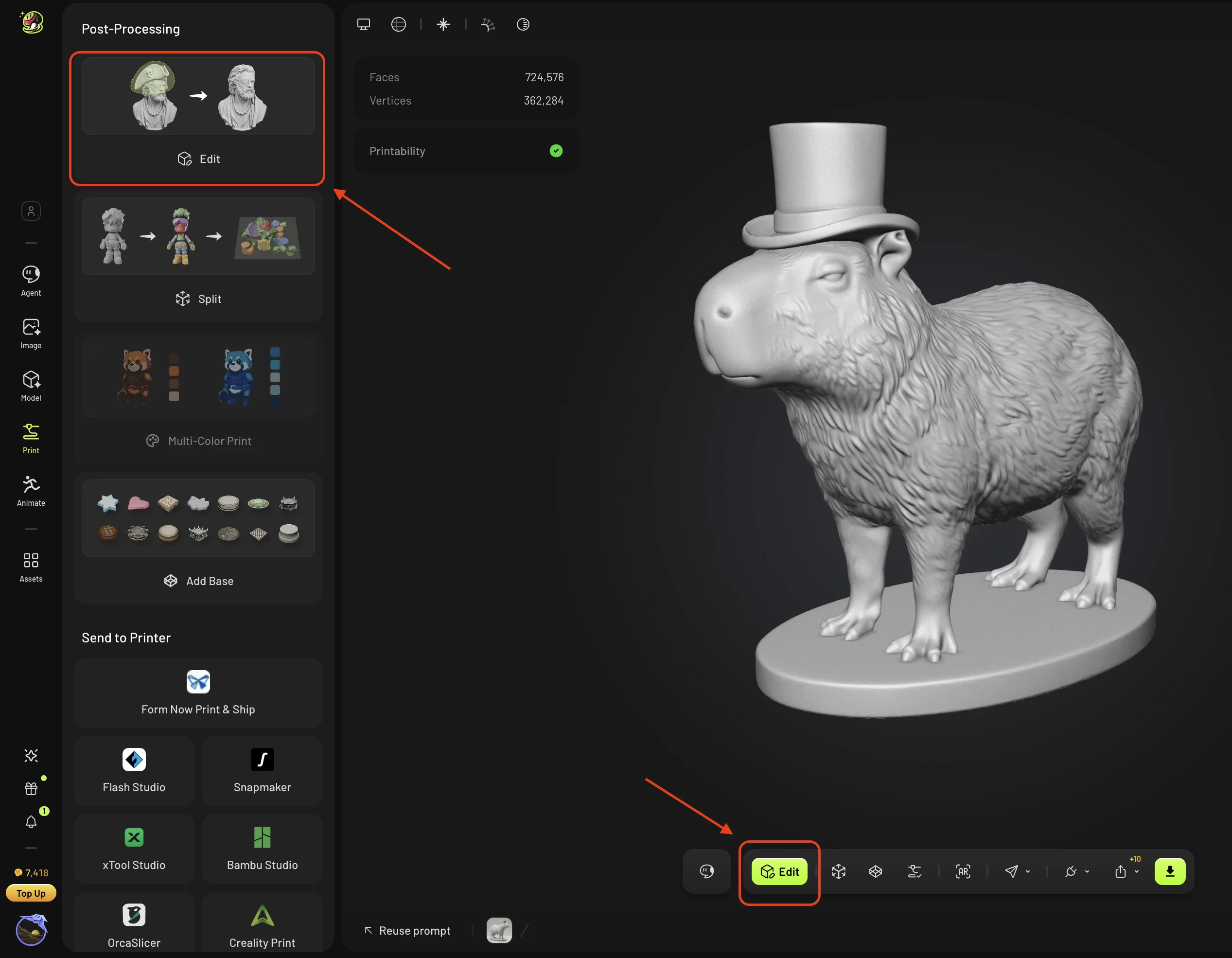
Meshy Edit runs in the workspace (Model & Print), on models you generated with Meshy. Open My assets, select the draft you want to change, and start an edit from that model.
Every registered user can use Meshy Edit — it is not a paid feature. Each generation costs 20 credits, and credits are refunded automatically when a generation fails.
What you can edit
Supported: high-poly drafts generated with Meshy.
Not supported yet:
Models uploaded from outside Meshy (planned for a later release)
Textured models
Separated parts
Rigged or animated models
Assets that are still being generated
The first version changes the geometry of the model only. Texture and color editing will arrive in a later version.
How to use Meshy Edit
Select a Meshy-generated draft in your workspace.
Open Meshy Edit and select the area you want to change:
Lasso: draw a region around the part. The selection passes through the model and takes the whole part.
Brush: clean up the edges of the selection.
Leave the selection empty to edit the whole model.
Describe the change in words. You can also attach reference images — up to 5 images, no more than 20 MB each.
Submit the edit. The job runs in the background, so you can leave the page; you get a notification when it finishes.
Review the new model, then keep editing it, download it, or send it to print.
You do not need a precise selection. The system refines the boundary for you after you submit.
Each edit produces a new model, and the original stays in your assets. If a job fails, the credits are refunded automatically, and you can Retry it in one click — your previous selection and description are loaded back.
Tips for better results
If an edit does not look right, select a larger area and include the neighboring parts.
Describe the shape you want in plain words, for example make it thicker or rounder.
Run the same edit a few more times.
Accessories that sit on the body, such as a hat or glasses, usually come out reliably.
FAQ
1.Is Meshy Edit free? Who can use it?
All registered users can use it; it is not a Pro feature. Each generation costs 20 credits, and failed generations are refunded automatically.
2.Which models can I edit? Can I upload my own?
For now, only high-poly drafts using Meshy 6 or Meshy 7.1 generated with Meshy. Uploading an external model is not supported yet, but is planned. Textured models, separated parts, rigged or animated models, and assets that are still being generated are not supported yet either.
3.Can I change textures or colors?
The current version changes only the geometry of the model. Texture editing will be supported in a later version.
4.Is the original model kept after editing?
Yes. Every edit creates a new model and the original is kept. The new model can be edited further, downloaded, or sent to print.
5.Does my selection have to be precise?
No. After you submit, the system processes the boundary as a whole. Lasso selects through to the whole part, and Brush is used to tidy the edges. With no selection, the edit applies to the whole model. Describe the change in text, and you can attach reference images too — up to 5, no more than 20 MB each.
6.How long does an edit take? What if it fails?
The job runs in the background, so you can leave the page and you will be notified when it is done. If it fails, the credits are refunded automatically, and you can Retry in one click — the system reloads your original selection and description.
7.What if the edit result is not what I wanted?
Adding accessories worn on the body, such as a hat or glasses, usually gives stable results. If the result isn’t quite right, try running the same edit a few more times, or adjust the selection and prompt. For example, select a larger area that includes the neighboring parts, or describe the shape more clearly (e.g., “make it thicker” or “make it rounder”).
8.Is there an API for Meshy edit?
Not yet. It is expected in early December, 2026.