
Relief turns a single image into a 3D relief panel: a raised design on a flat plate with a completely flat back, ready for 3D printing, laser engraving, or CNC carving.
Where to find Relief
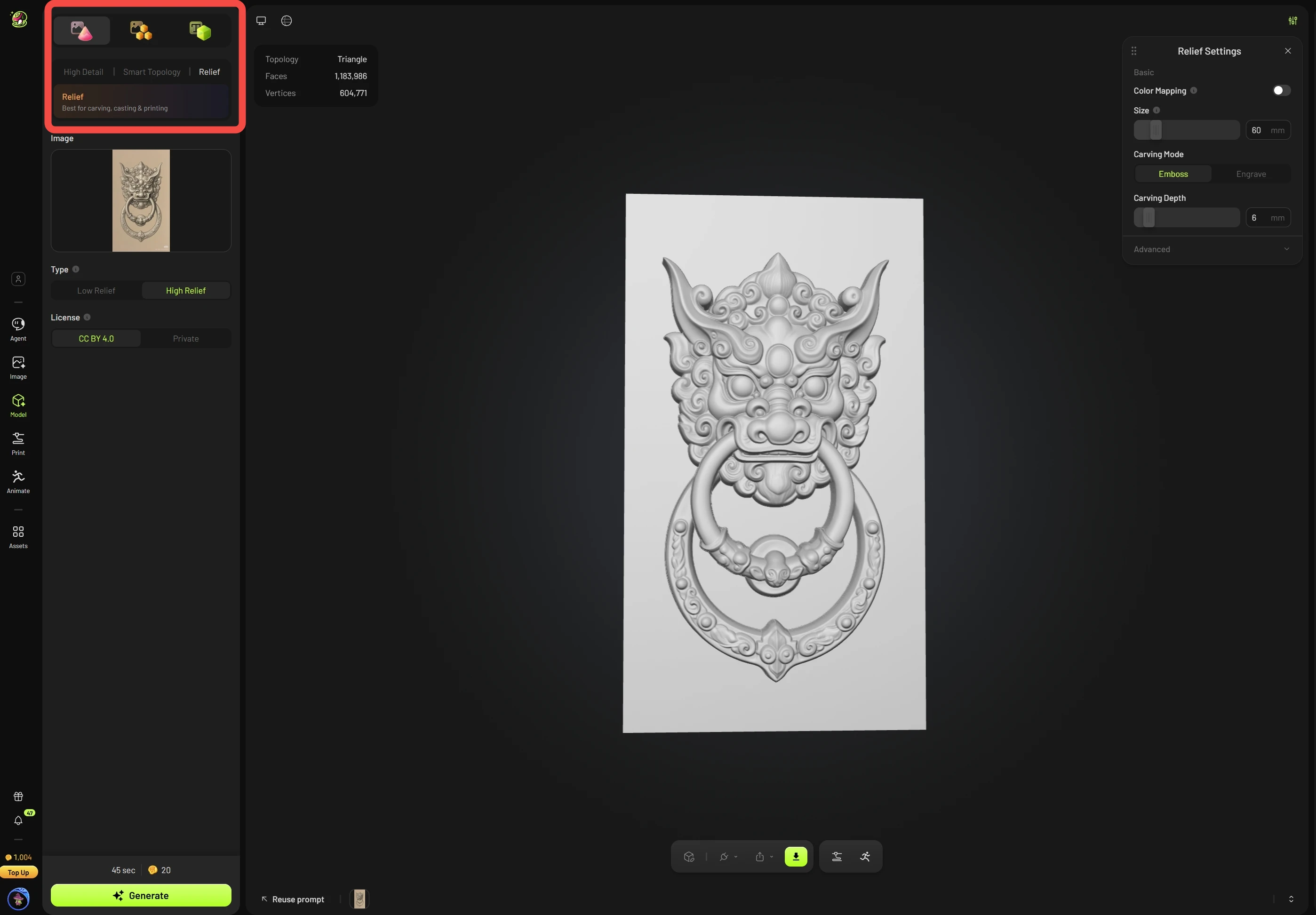
Open the Meshy workspace and click Model in the left sidebar.
Select the Image to 3D tab at the top of the panel.
Click Relief, next to High Detail and Smart Topology.
Upload your image, then choose a relief type: Low Relief or High Relief.
For the full walkthrough, including how to choose between Low and High Relief, adjust size and depth, and export for printing, see our tutorial: How to Make a 3D Relief from a Photo.
FAQ
1.How many credits does a generation cost?
Each generation costs 20 credits. Low Relief and High Relief cost the same.
2.How long does generation take?
About 50 seconds for both Low Relief and High Relief.
3.Can I retry for free?
Free retries are not available at the moment. If a task fails, the credits are automatically refunded. Generating again is charged at the regular price.
4.Does adjusting settings cost extra credits?
No. All adjustments are made in your browser. They don’t regenerate the relief and don’t use any credits.
5.Are my settings saved?
Yes. Settings are saved automatically and are kept after you refresh the page or switch to another asset and come back.
6.Why is there a delay when I change a setting?
The model is rebuilt each time you change a setting, and this takes longer at a Mesh Resolution of 2048. We recommend keeping it at 1024 while you adjust, then raising it once your settings are final.
7.Does Relief support textures or multi-color printing?
Not at the moment. Texture mapping and multi-color printing are planned for a future update.
8.Can I change the size when I download?
Yes. Use Resize in Download Settings to scale the model proportionally by height. The change is applied at export.
9.Will the exported size match the size I set?
Depth (Z axis): The exported carving depth always matches your settings.
Width and height (XY axes): With Remove Base off, the exported size matches your settings, because the size is based on the longer side of the base. With Remove Base on, the XY dimensions will change. To get a specific size, set it with Resize in Download Settings.
10.Why does my GLB or OBJ file look tiny in my slicer?
GLB and OBJ files use meters, while slicers read files in millimeters by default. When you import the file, the slicer will ask whether to convert units. Click Yes and the model will display at the correct size.
11.Why does my STL file look 1000 times larger in Blender or other DCC software?
STL files use millimeters, while DCC software such as Blender defaults to meters, so the model appears 1000 times larger.