
Overview
The Platform feature lets you add a decorative display base beneath your 3D model — perfect for miniatures, collectibles, tabletop pieces, and 3D printing. You can choose from multiple styles and sizes, adjust rotation and scale, and download the combined model with the platform baked in.
Accessing the Platform Feature
After generating a model in the Meshy workspace:
1. Click the Print icon in the toolbar at the bottom of the 3D viewer, or on the left side menu.
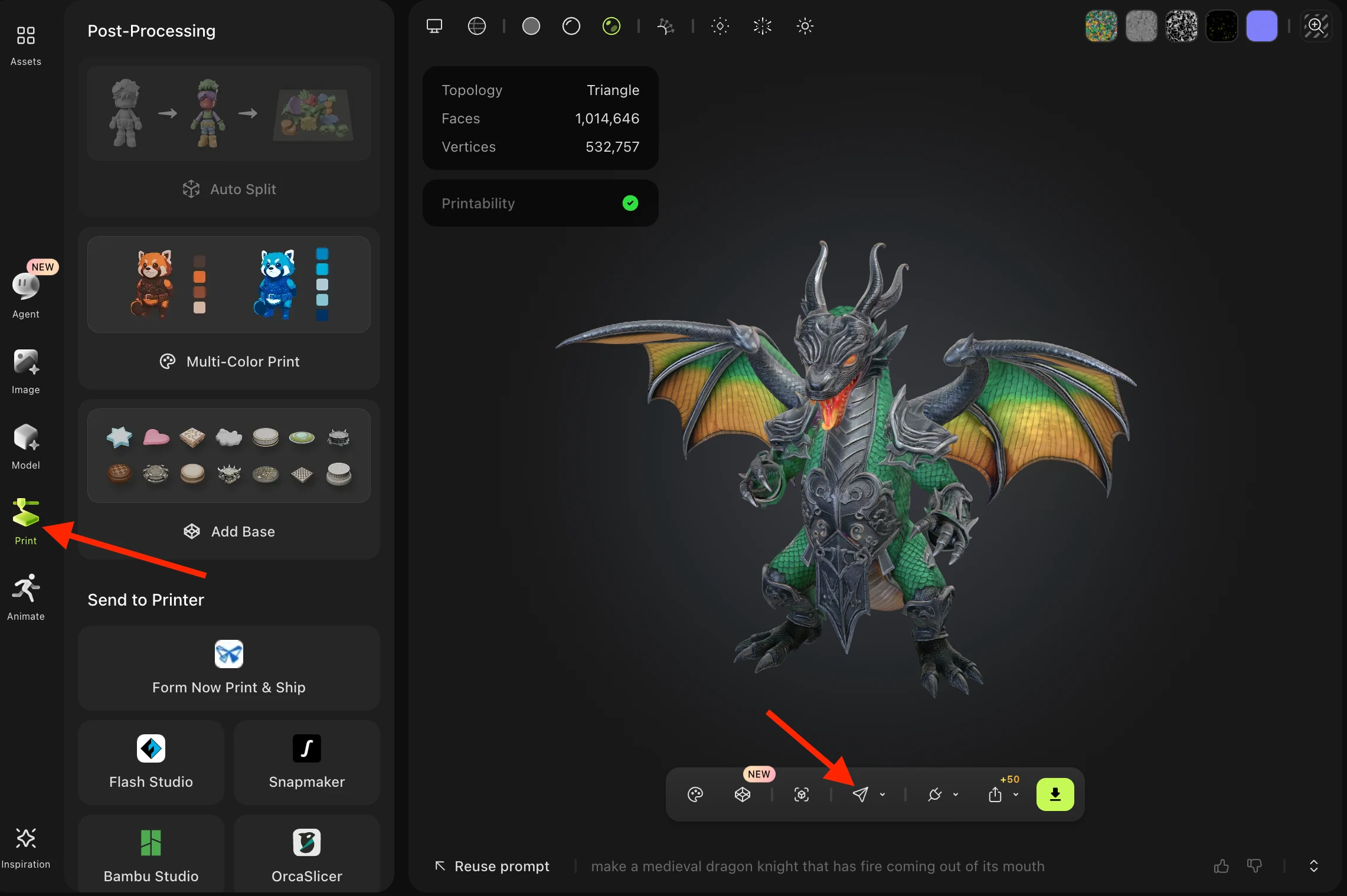
2. On the left side panel, click the "Add Base" button:
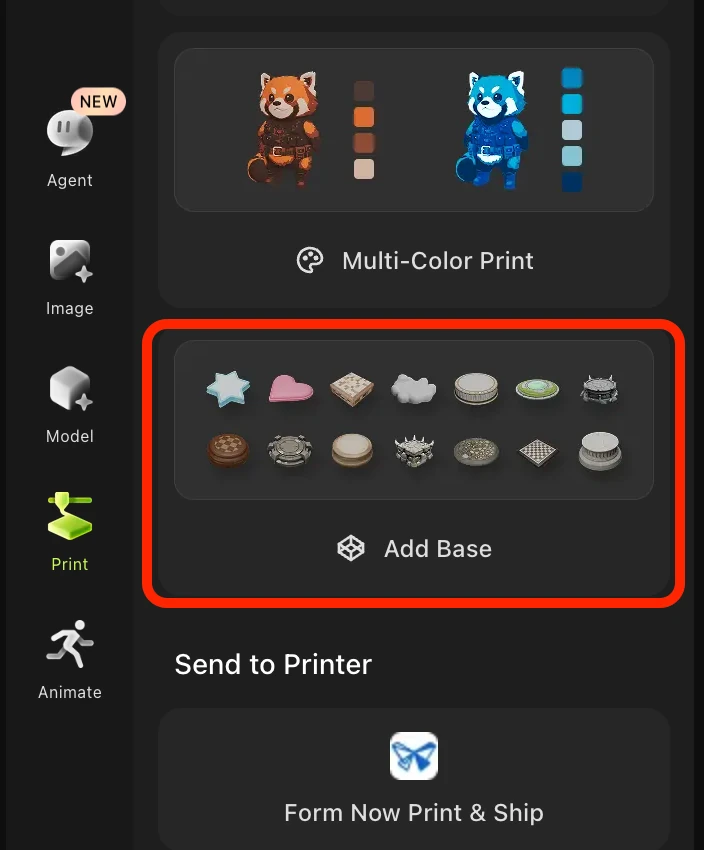
Choosing a Platform Style
Once the platform panel opens, you'll see six style categories to choose from:
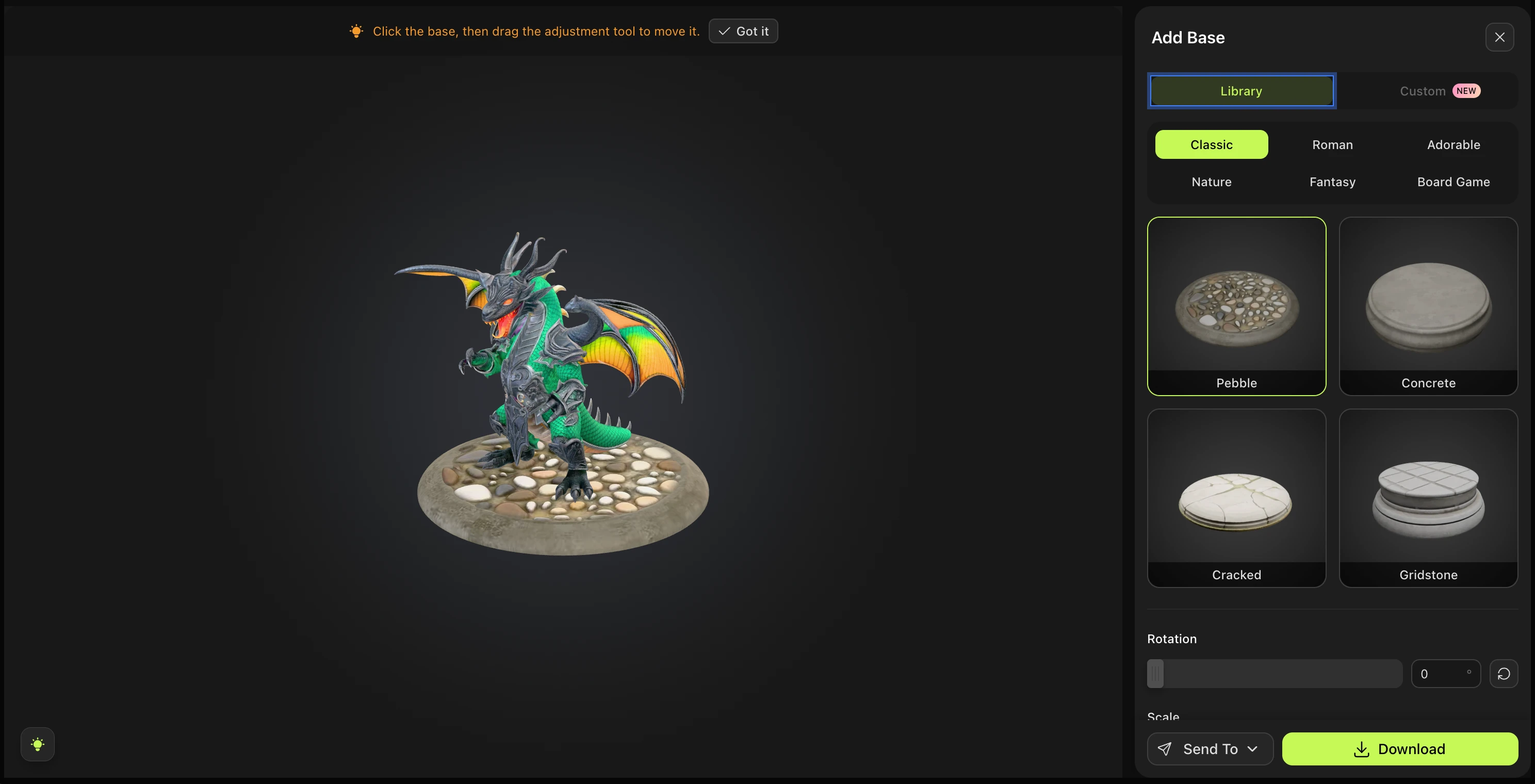
Classic — Clean, minimal round or square bases suitable for any model
Roman — Ornate, column-inspired pedestals with architectural detail
Adorable — Cute, rounded shapes great for chibi or kawaii-style figures
Nature — Organic, earthy bases with rock, root, or terrain textures
Fantasy — Mystical and dramatic bases ideal for creatures and characters
Board Game — Flat, token-style platforms designed for miniatures and tabletop gaming
Each category contains four platform variants to choose from within that aesthetic.
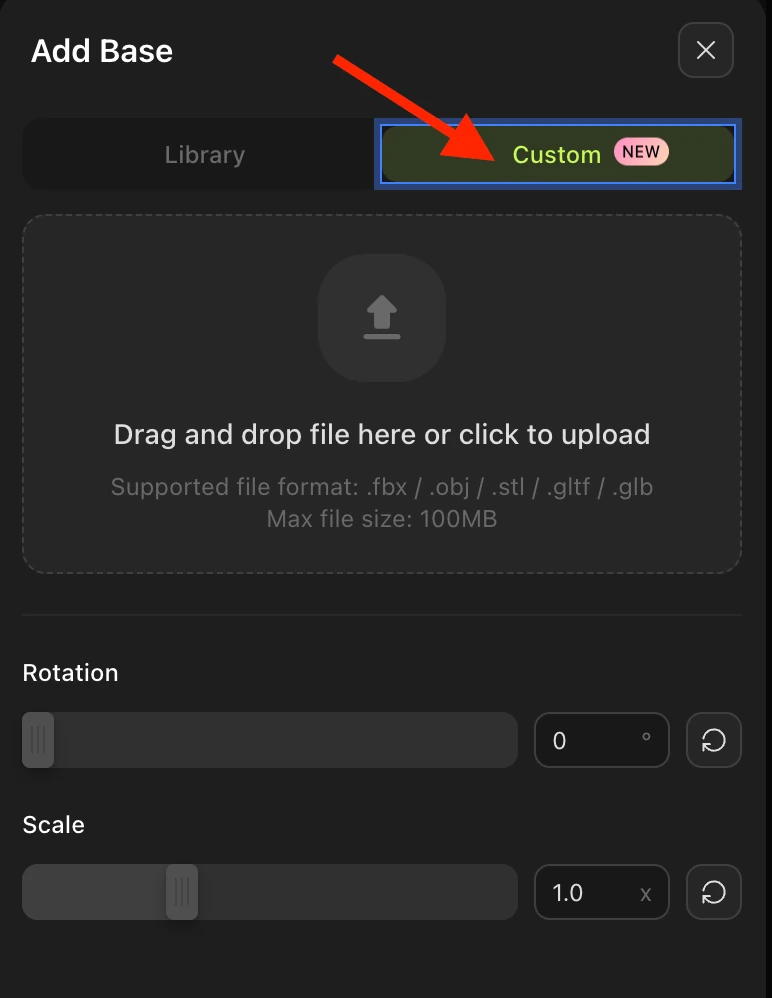
Custom Platform
By clicking the Custom button, you can upload your own image for your platform design:
Adjusting the Platform
After selecting a platform style, you can fine-tune its appearance using the controls in the panel:
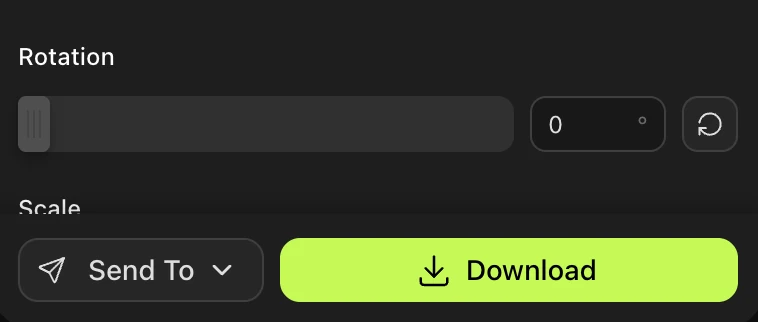
Rotation slider — Spin the platform to find the best angle for your model
Scale / Size slider — Resize the platform to fit larger or smaller models
Reset button (lower right) — Instantly resets rotation and scale back to the defaults
To move the platform or model within the 3D viewer, hover over the lightbulb icon in the lower left — it reveals the viewer navigation controls (orbit, pan, zoom).

Downloading with the Platform
When you're happy with the result, click the Download button to export your model combined with the platform. The following formats are available:
STL — Standard format for FDM and resin 3D printing
3MF — Modern 3D printing format with color and structure support
OBJ — Widely compatible mesh format for modeling software
GLB — Binary glTF, ideal for real-time rendering and web use
The platform is merged into the downloaded file — what you download is a single combined mesh of your model sitting on the chosen base.
Frequently Asked Questions
1. What is the platform feature for?
The platform adds a decorative base beneath your model, giving it a "miniature on display" look. It's most popular for 3D printing figures, collectibles, tabletop game pieces, and showcasing models in renders or on social media.
2. Which models can I add a platform to?
You can add a platform to any 3D model in your Meshy workspace — whether generated via Text to 3D, Image to 3D, or any other workflow. Access it from the Print icon in the viewer toolbar.
3. Can I change the platform style after I've selected one?
Yes — while you're still in the platform panel, simply click a different style or variant to swap it. The change is previewed live in the viewer before you download.
4. Is the platform included when I download the model?
Yes. When you click Download in the platform panel, the exported file includes both the model and the platform combined into a single mesh. If you want your model without a platform, download it through the standard export option instead.
5. Can I remove or undo the platform after downloading?
Once downloaded, the platform is baked into the mesh. To get a version without the platform, go back to the Meshy workspace and use the standard Download option (not from the platform panel).
6. What 3D printing slicer should I use with the STL/3MF files?
Meshy doesn't have a recommended slicer — any standard slicer works, such as Bambu Studio, PrusaSlicer, Chitubox, or Lychee Slicer. Import the downloaded STL or 3MF directly and slice as normal.
7. Will the platform scale correctly for my model?
The platform adjusts visually in the viewer, but you may need to re-scale the combined model in your slicer to match your desired real-world print size. Use the Scale slider in the platform panel to preview different proportions before exporting.