
Overview
Meshy Agent is Meshy's AI-powered chat assistant built directly into your Workspace. Instead of navigating menus and settings, you simply describe what you want — and the Agent handles the rest. Generate 3D models, apply textures, batch-process assets, and send prints to your slicer, all through a natural conversation.
This article covers how to access the Agent, what it can do, and tips for getting the best results.
Accessing Meshy Agent
Step 1: Open Your Workspace
Go to meshy.ai/workspace and sign in to your account.
Step 2: Open the Agent Panel
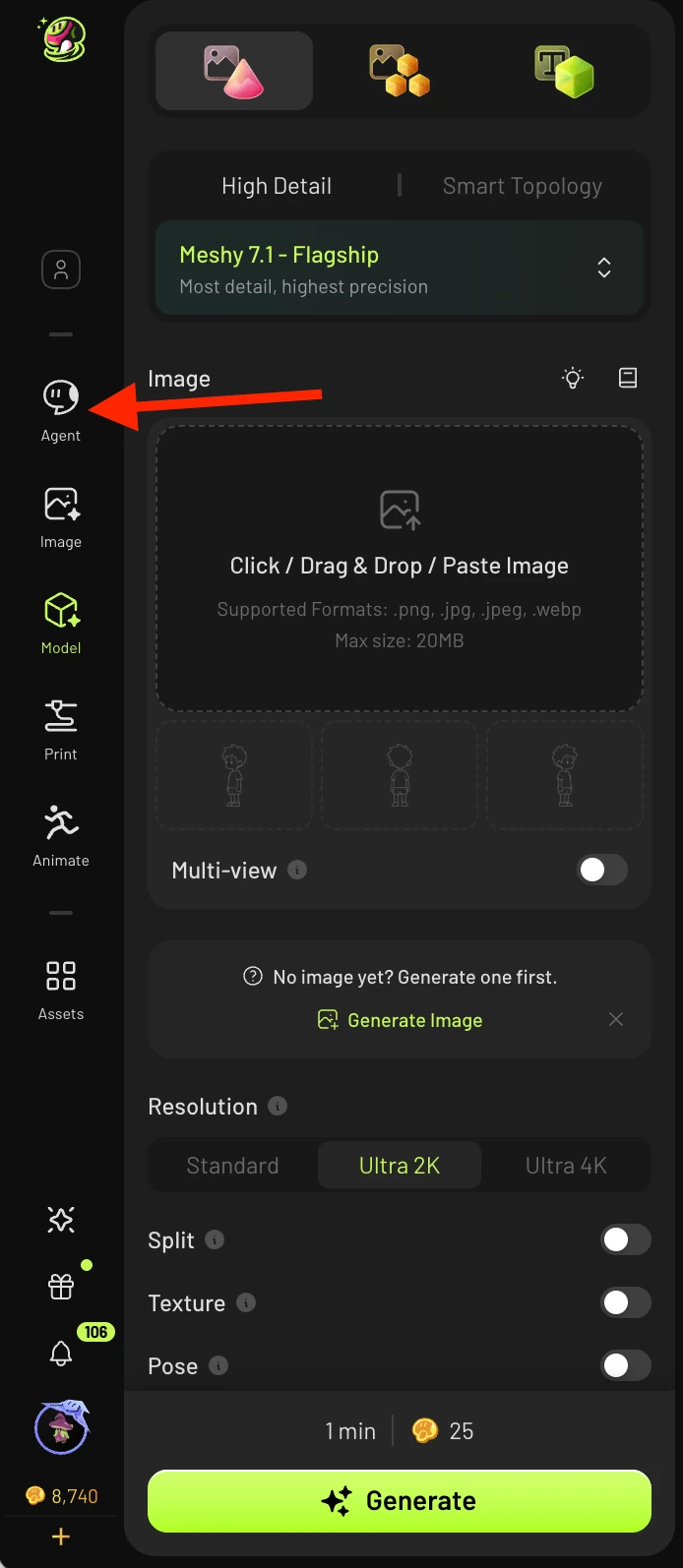
Click the Agent icon in the left sidebar, or navigate directly to meshy.ai/workspace?sidebar=agent. This opens the chat interface.
Which will then take you here:
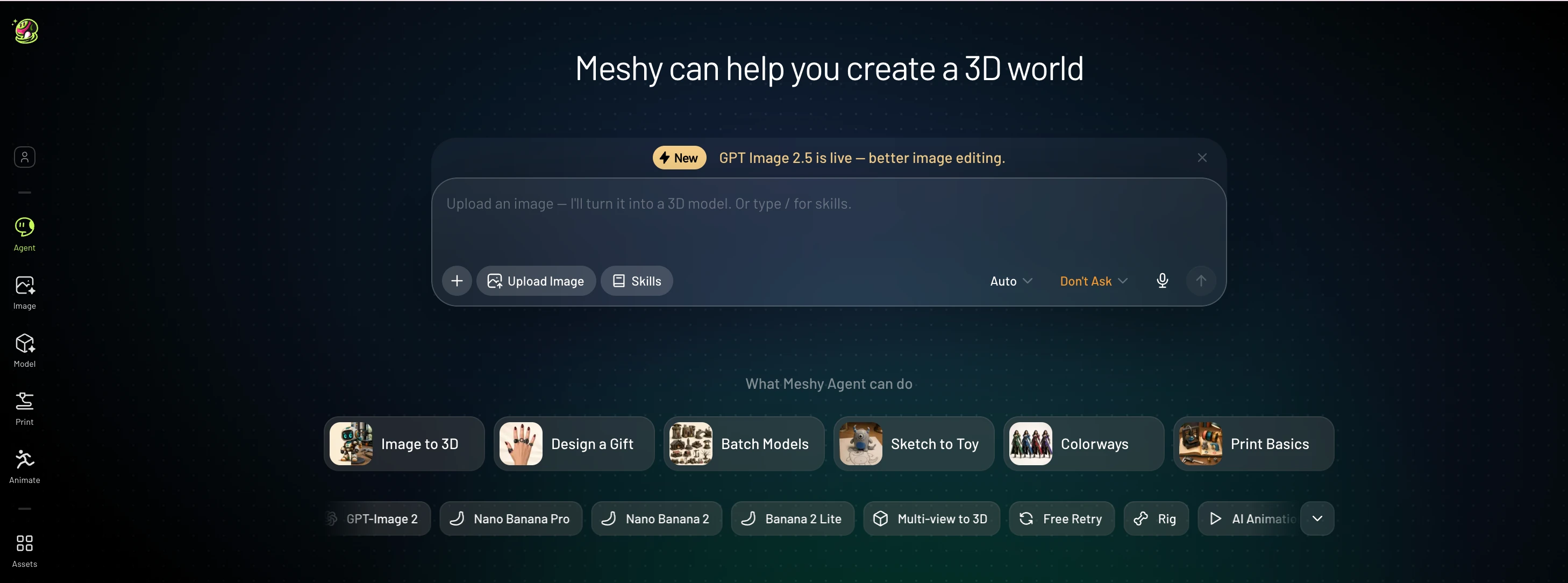
The "+" symbol underneath the text prompt area allows you to upload an image, model, or select from your already made assets:
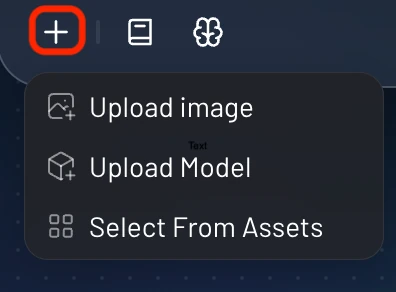
The "Skills" button will allow you to pick styles for your model provided by the community, or your own custom ones:
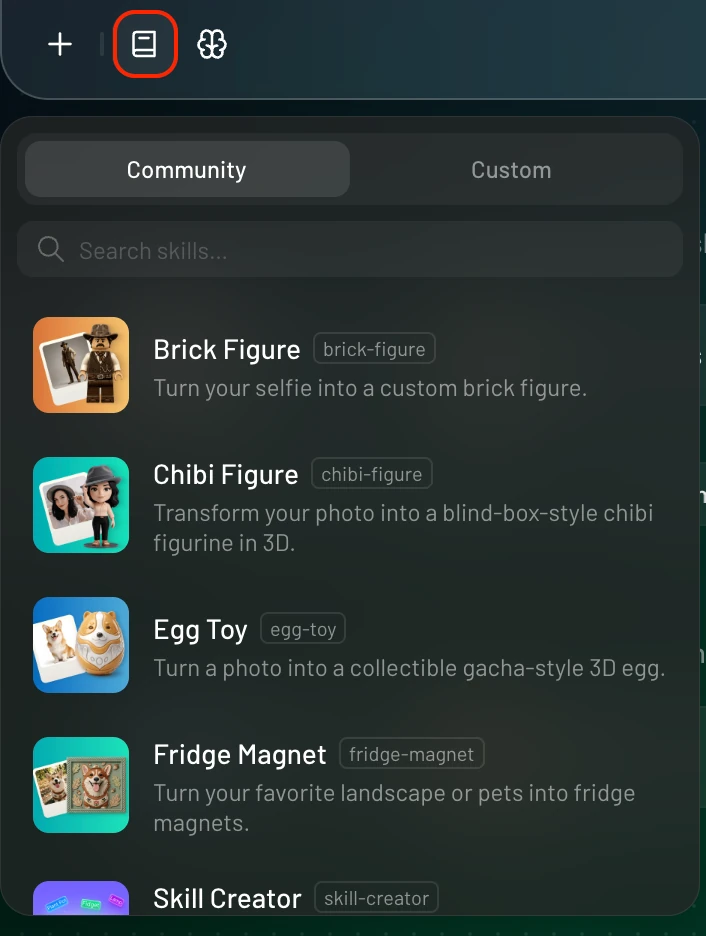
The last icon allows you to select your model type for your generation, depending on the quality you want:
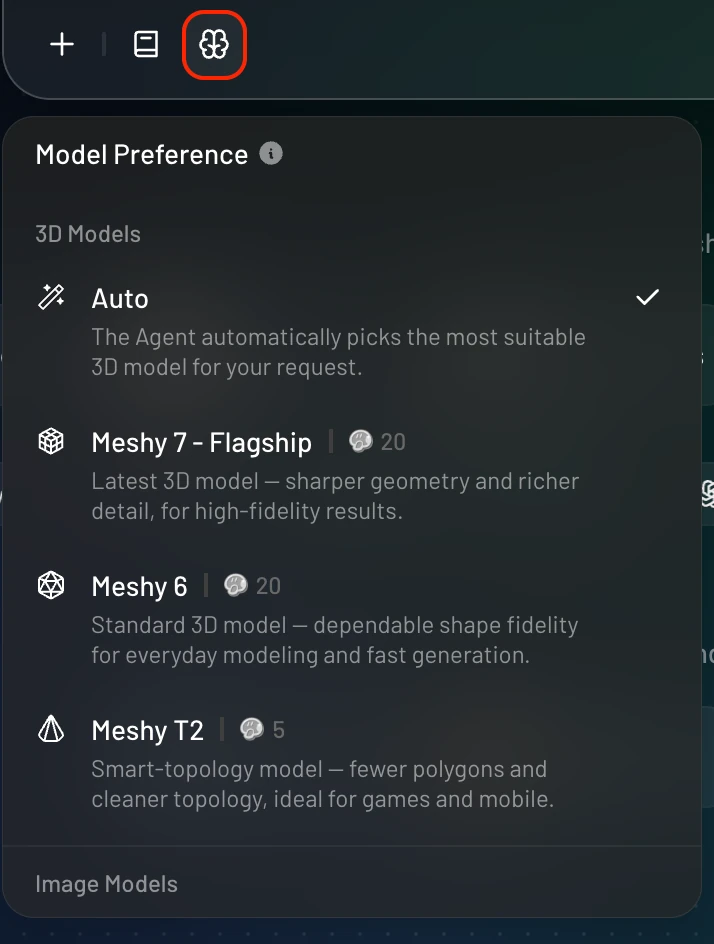
Step 3: Start a Conversation
Type your request in plain language. For example:
"Generate a 3D model of a miniature castle for 3D printing"
"Texture this model with a weathered stone look"
"Create 10 zodiac sign keychains in a consistent medieval style"
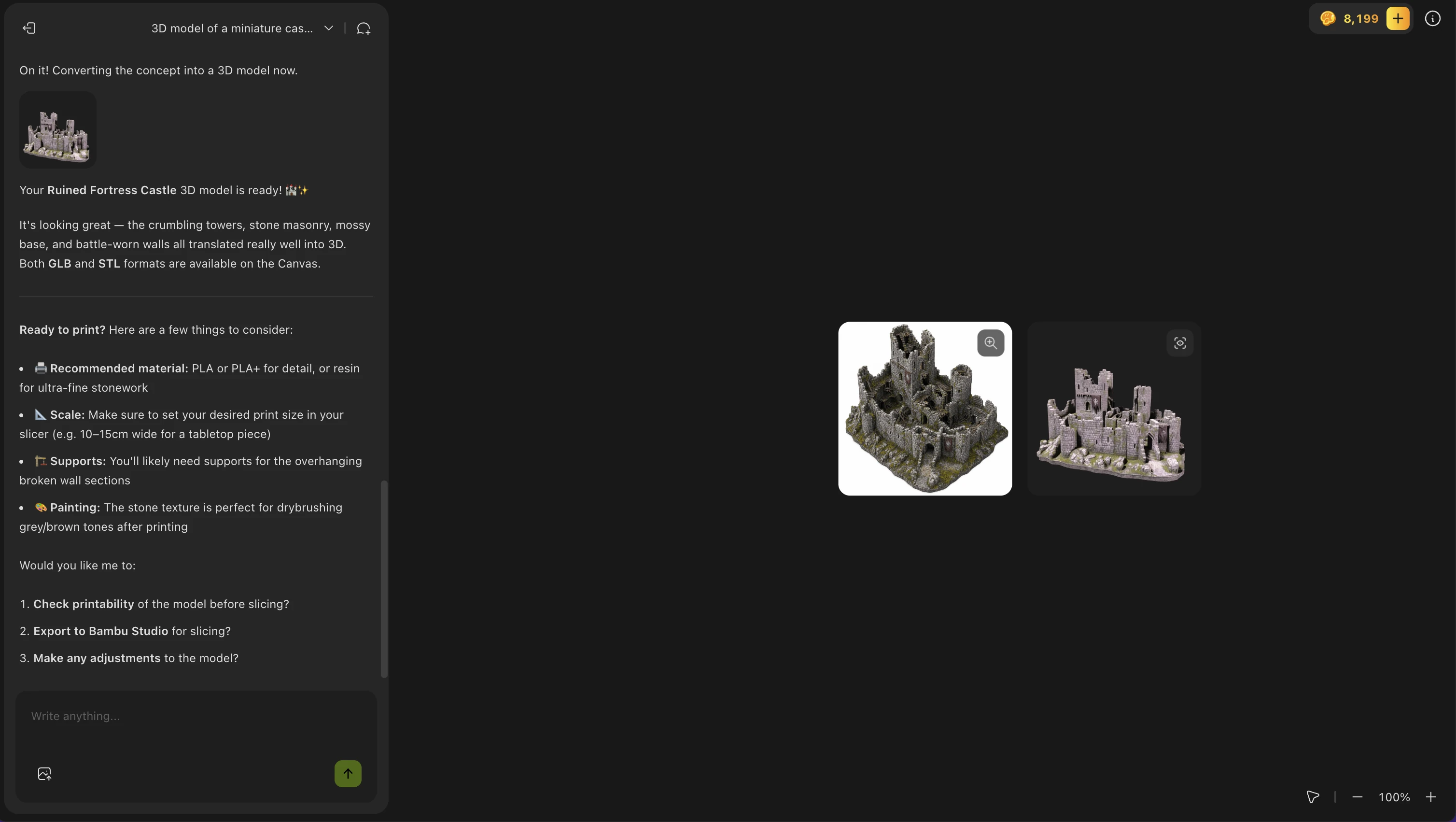
The Agent will execute the task and show results directly in the chat.
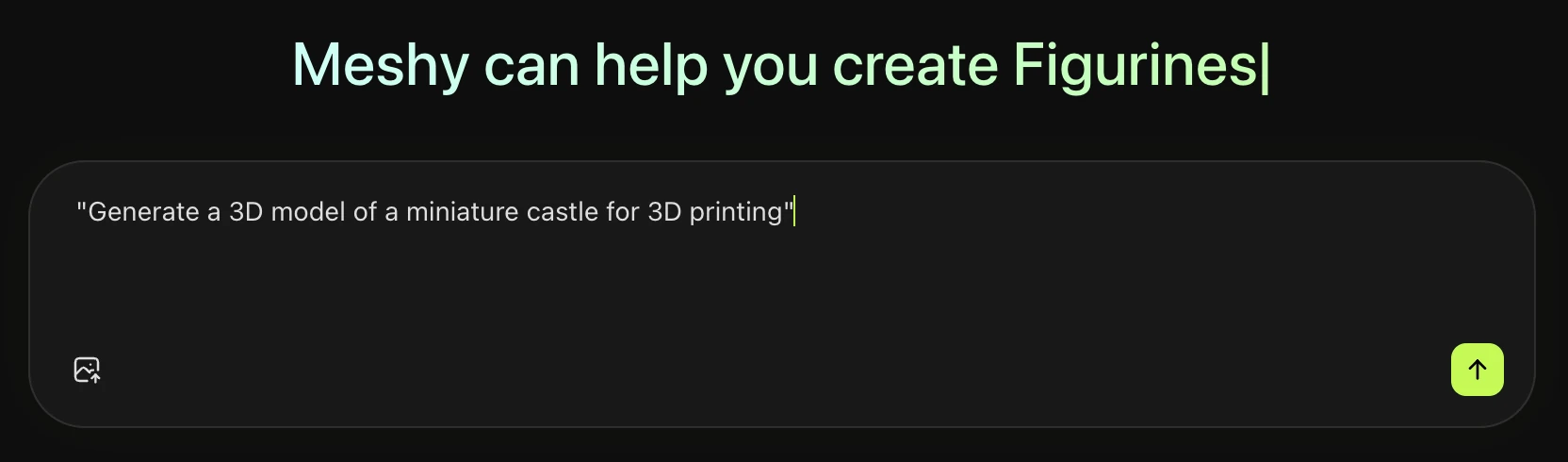
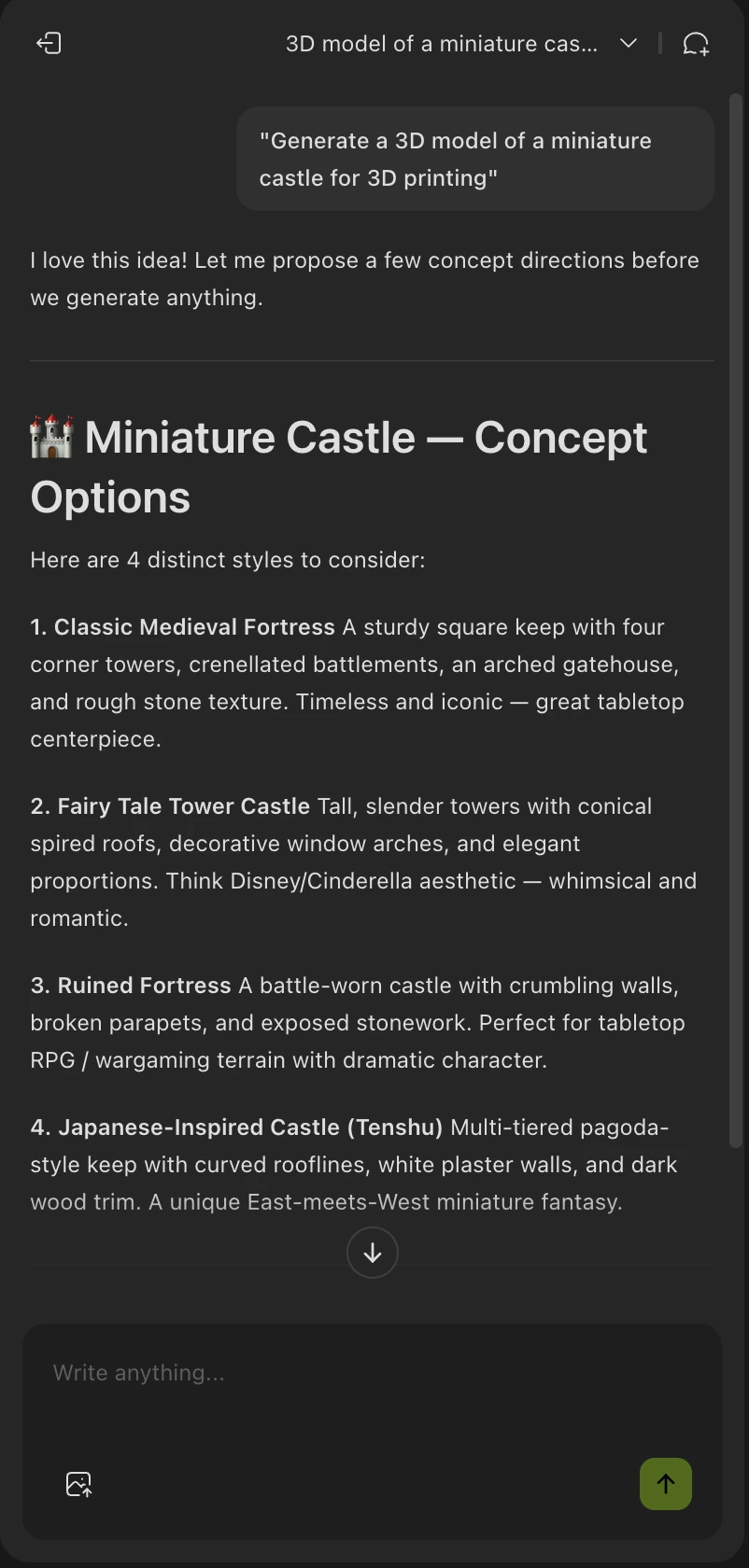
From there, Meshy can generate the image you like, and then create the model from it, all within text prompt.
Image Generation:
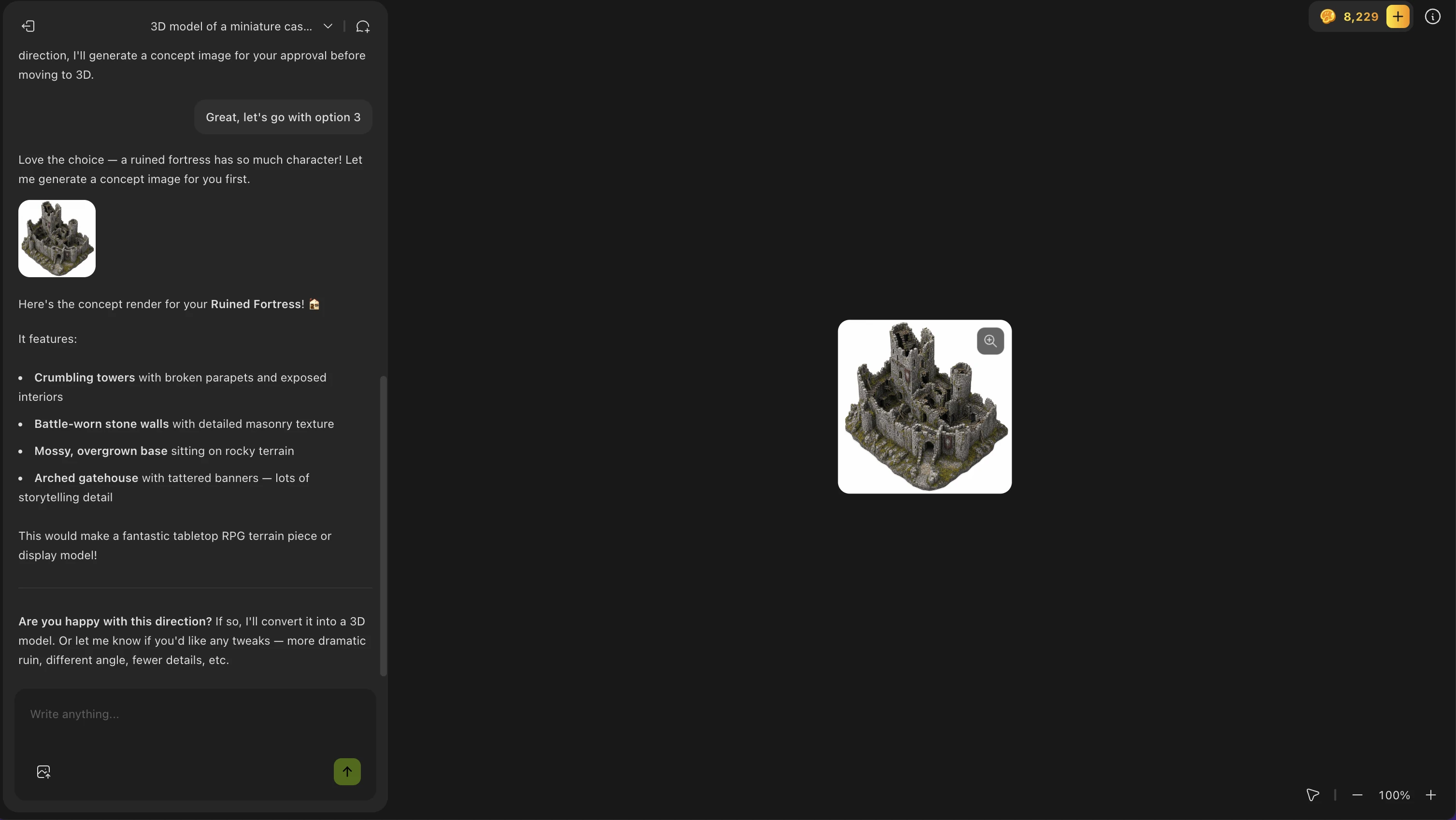
Model Generation:
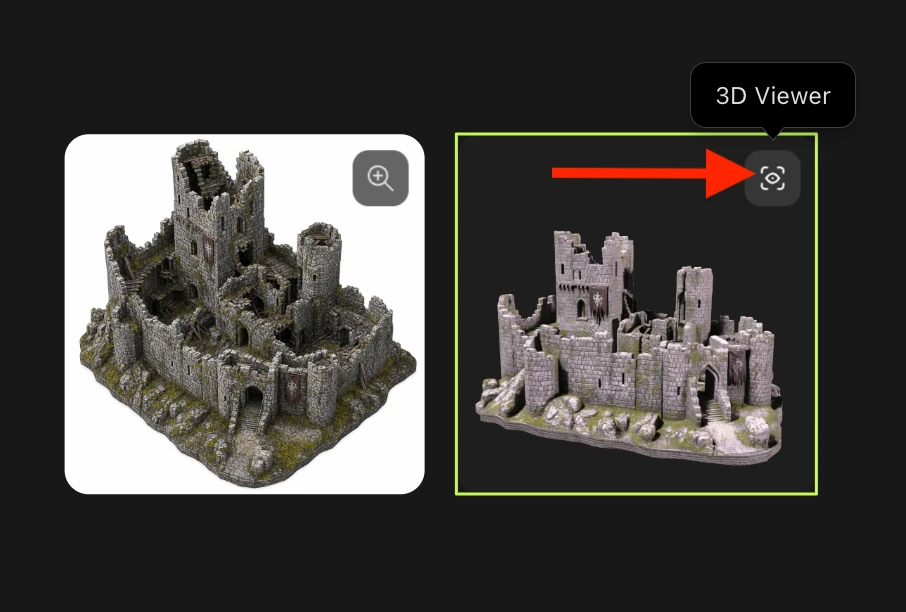
Once Meshy Agent generates the model, you can click the 3D Viewer button in the upper right corner of the model thumbnail, and get a larger view of the model:
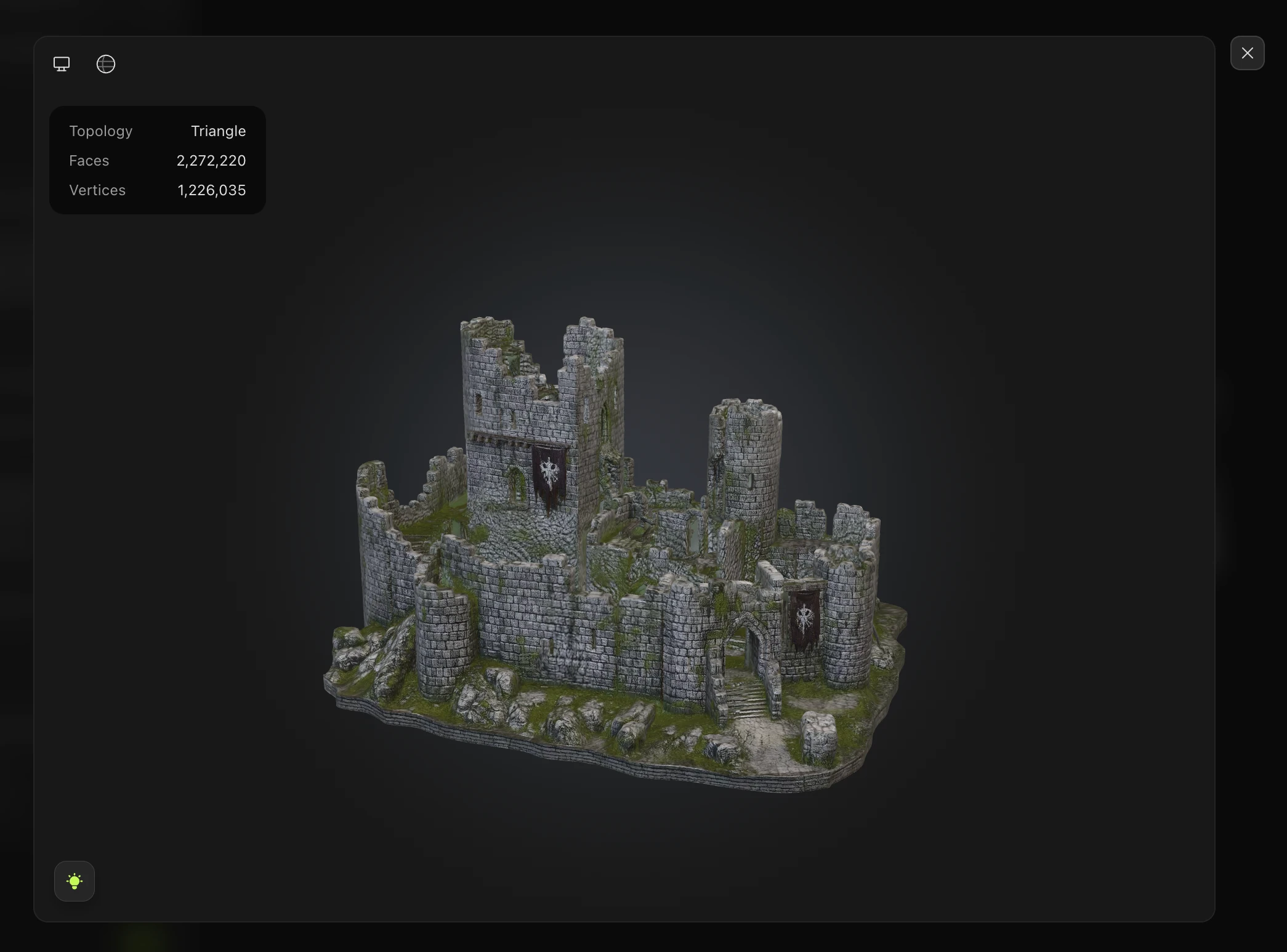
Models generated via Meshy Agent, appear in your Workspace Assets/Model Library.
What Meshy Agent Can Do
Capability | Supported |
Image generation | ✅ |
Image editing | ✅ |
White model (untextured) generation | ✅ |
Texturing 3D models | ✅ |
Sending models to slicers | ✅ |
Referencing existing models in chat | ✅ |
Batch retexturing | ✅ |
Remesh operations | ✅ |
2D editing | ✅ |
3D mesh editing | 🔜 Coming soon |
Best Use Cases
Meshy Agent works especially well for:
3D printing — Describe your print and the Agent generates a print-ready model and sends it straight to your slicer
Creative brainstorming — Explore ideas rapidly by generating multiple variations through conversation
Custom gifts — Build end-to-end workflows for personalized 3D-printed gifts
Batch asset creation — Generate many assets in a consistent style by describing your theme once
Client demos — Showcase real-time 3D generation tailored to a client's industry or preferences
Tips for Best Results
Be specific — Include style, purpose, scale, and material (e.g., "a gothic arch keychain, 3 cm tall, suitable for FDM printing")
Reference existing models — Cite models already in your Workspace for retexturing or remeshing
Iterate freely — The Agent is conversational; follow up with refinements like "make it more weathered" or "reduce polygon count"
Push its limits — Try multi-step requests like "generate a series of fantasy weapons, texture them in a rusty metal style, and send all to my slicer"
Known Limitations (Beta)
Meshy Agent is currently in Beta. A few things to keep in mind:
3D mesh editing is not yet supported — direct mesh manipulation via chat is coming in a future update
Results may occasionally require manual refinement
Complex multi-step workflows may take longer to complete
Troubleshooting
The Agent isn't responding
Try refreshing the page and reopening the Agent panel. If the issue persists, check status.meshy.ai for any ongoing incidents.
My model didn't generate as expected
Rephrase your prompt with more specifics. Instead of "make a sword," try "generate a low-poly medieval longsword, 3D-print ready, with no overhangs."
I can't find the Agent tab
Make sure you're signed in to your Meshy paid account, then navigate directly to meshy.ai/workspace?sidebar=agent.